How to Make a PDF Look Professional
A PDF is often the final version of your work.
Appearance matters before anyone reads a word.
Creating a professional-looking PDF has less to do with the PDF itself and more to do with how the document is prepared before it’s exported.
The PDF is the finished product
It’s the document you send to clients, attach to proposals, submit to stakeholders, or archive as a permanent record. Because it represents the finished product, appearance matters. A polished PDF builds confidence before the first paragraph is even read.
The good news is that creating a professional-looking PDF has less to do with the PDF itself and more to do with how the document is prepared before it’s exported.
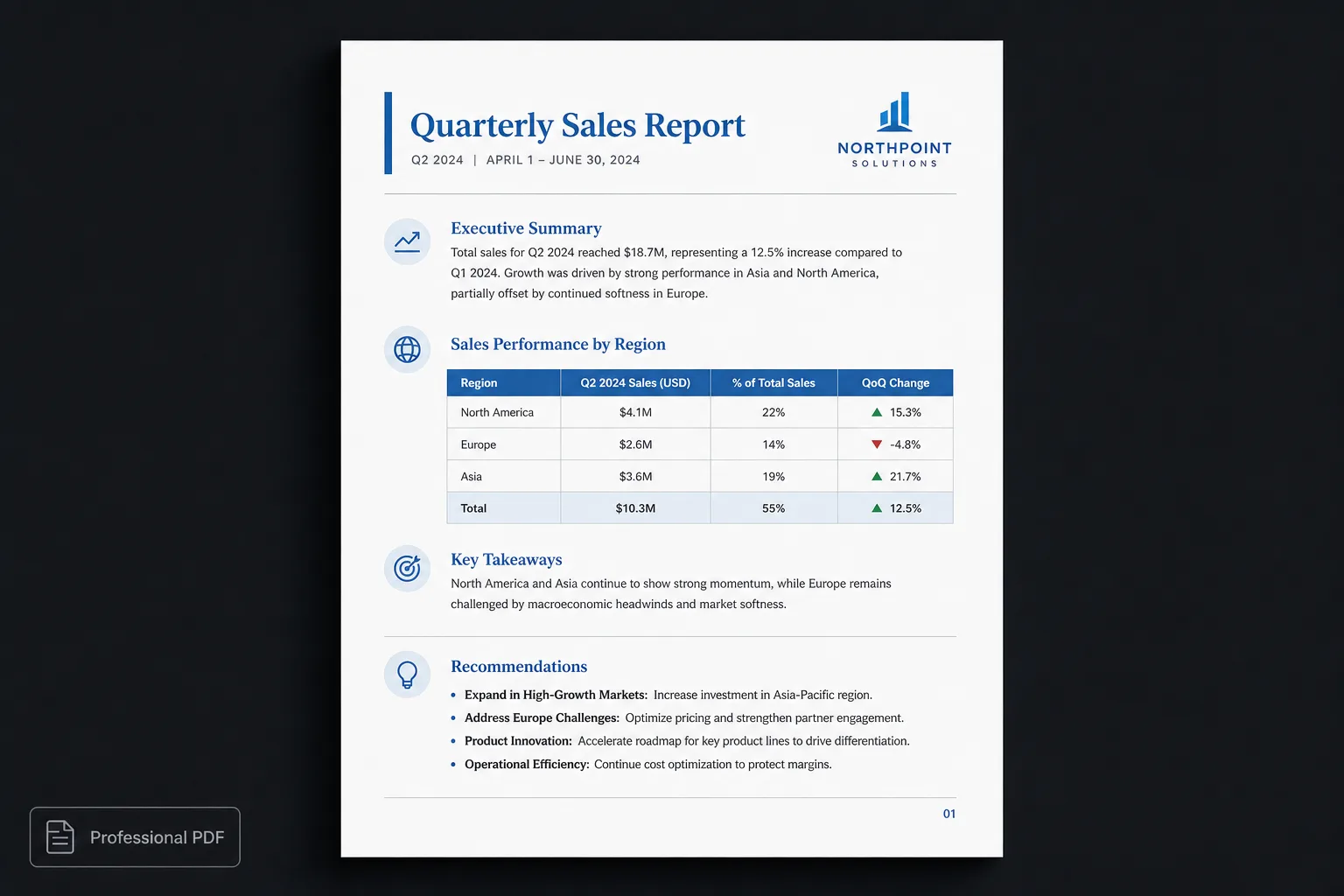
What makes a PDF look professional?
Professional PDFs share a few common characteristics. They have:
- Clear typography
- Consistent heading hierarchy
- Balanced whitespace
- Readable line lengths
- Professional tables
- High-quality images
- Predictable page numbering
- Logical page breaks
- Clean margins
- A cohesive visual identity
These qualities make the document easier to read and easier to trust.
Common reasons PDFs look amateur
Many documents begin life in a word processor. Over time they accumulate:
- Mixed fonts
- Inconsistent spacing
- Manual page breaks
- Tables copied from different sources
- Images that shift unexpectedly
- Headings with inconsistent sizing
- Lists using different indentation
When exported to PDF, every inconsistency becomes permanent. The PDF isn’t the problem. It’s faithfully preserving a document that wasn’t designed consistently.
Design before you export
Instead of treating PDF export as the final formatting step, think of it as the publishing step. Create a consistent document first. Then generate the PDF.
Modern publishing tools make this easier by separating content from presentation. The document contains the information. A publication theme controls how that information appears. The exported PDF simply reflects that design.
Export publishes the design. It doesn’t invent it.
A better workflow
Rather than editing formatting throughout the writing process:
- Write the content.
- Review and refine it.
- Apply a publication theme.
- Preview every page.
- Export the finished PDF.
This workflow produces more consistent results because the entire document follows one design system.
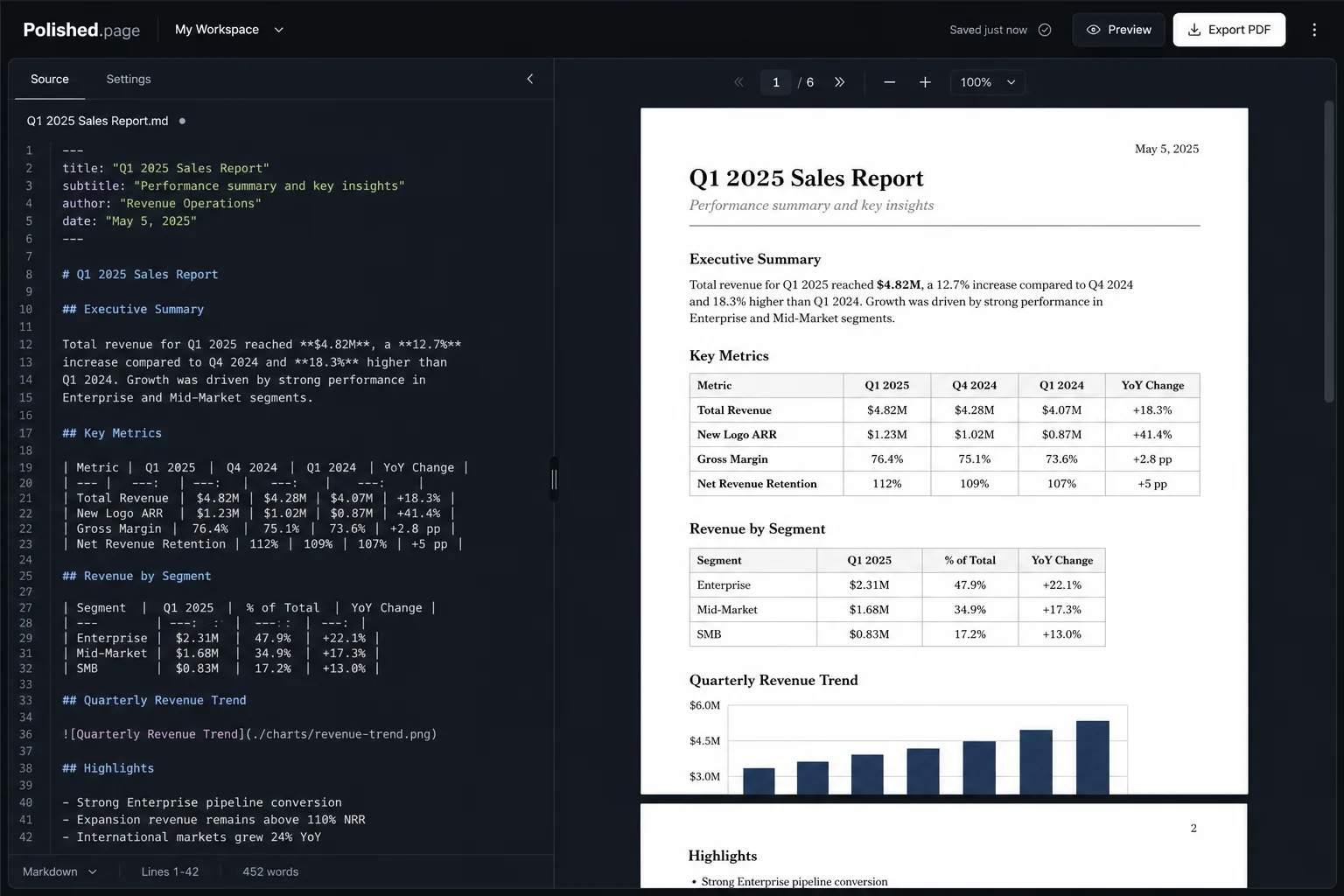
Typography matters more than decorations
One of the biggest misconceptions is that professional documents require elaborate graphics. In reality, typography has a much greater impact.
Good typography means:
- Comfortable line spacing
- Appropriate font sizes
- Clear section hierarchy
- Consistent emphasis
- Predictable rhythm between paragraphs
Readers often describe these documents as “easy to read” without consciously noticing why.
Consistency builds trust
Professional documents avoid surprises.
- Every heading follows the same rules
- Every table shares the same styling
- Images align consistently
- Margins remain predictable
- Page numbers appear in the same location
The reader can focus entirely on the information because the layout never distracts from it.
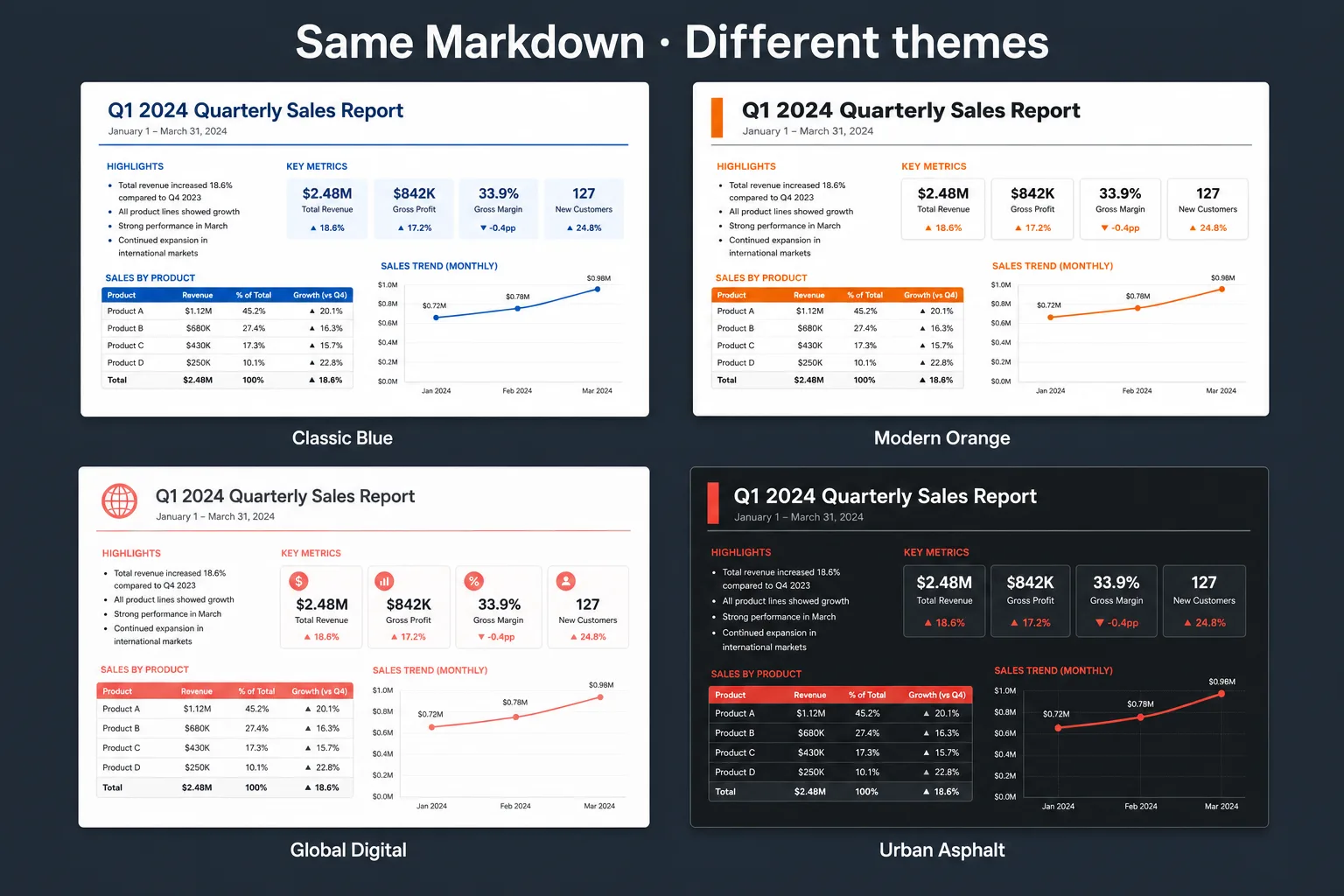
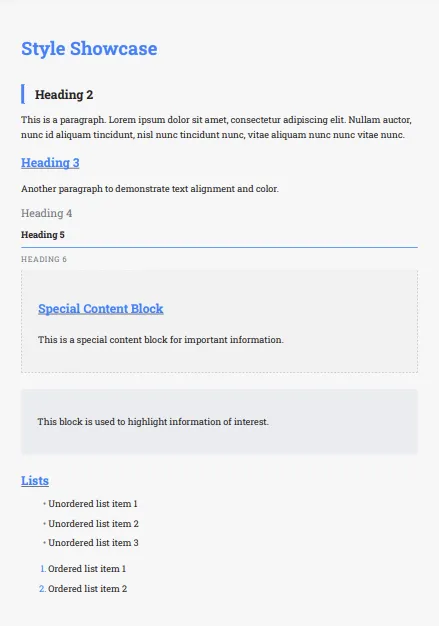
Classic Blue 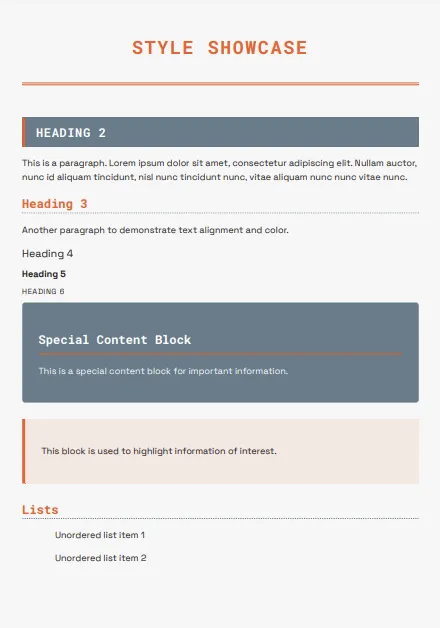
Modern Orange 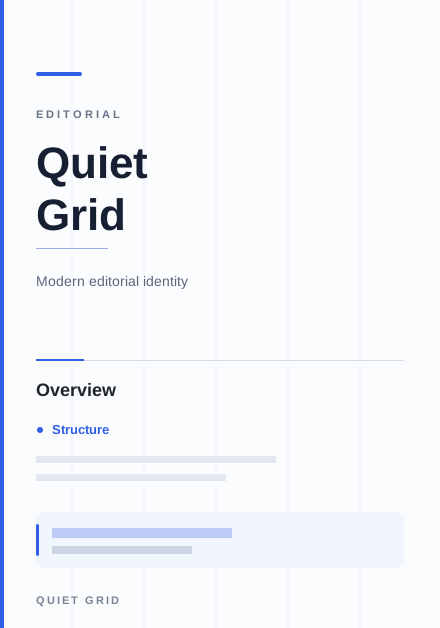
Quiet Grid 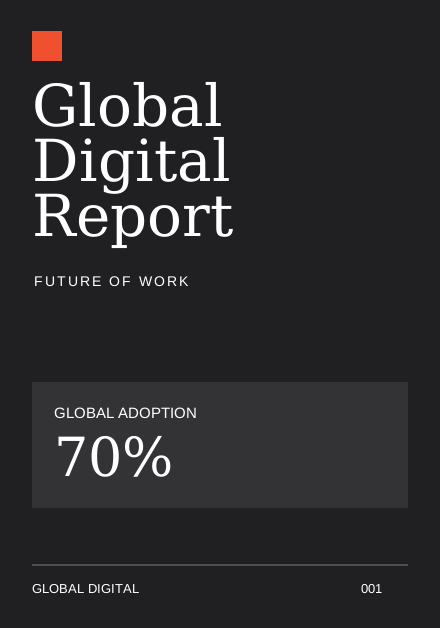
Global Digital
Start with structured content
Many modern workflows begin with structured Markdown rather than manual formatting. Markdown defines:
- Headings
- Lists
- Tables
- Images
- Quotes
- Code blocks
Presentation is then applied during publishing. This approach allows one document to be presented using different publication themes without rewriting the content.
# Executive Summary
## Progress by Workstream
## Recommendations
Preview before exporting
One advantage of paginated publishing tools is the ability to review the finished document before creating the PDF. A live preview helps identify:
- Awkward page breaks
- Orphaned headings
- Large blank spaces
- Oversized images
- Table overflow
- Layout inconsistencies
Small adjustments before export often produce a noticeably better final document.
Live example
Here’s a stakeholder briefing you can open directly. Theme it, preview every page, and export the finished PDF when you’re ready.
---
title: Stakeholder Briefing
theme: 14
pageSize: letter
orientation: portrait
coverPage: true
tableOfContents: true
pageNumbers: true
---

# Stakeholder Briefing

## Executive Summary

The programme remains on schedule. Scope held after the mid-cycle review, and
the remaining risks are limited to vendor lead times and one deferred analytics
request.

## Progress by Workstream

| Workstream | Status | Notes |
| --- | --- | --- |
| Discovery | Complete | Success criteria signed off |
| Delivery | On track | Core workflows live in staging |
| Enablement | In progress | Training pack due Friday |
| Handoff | Planned | Final walkthrough next week |

## Recommendations

1. Keep the weekly status cadence through go-live plus two sprints.
2. Promote the runbook into the internal wiki before handoff.
3. Treat the deferred analytics request as a follow-on statement of work.

## Decision Path

```mermaid
flowchart LR
  A[Draft content] --> B[Apply theme]
  B --> C[Preview pages]
  C --> D[Export PDF]
```

## Next Steps

- Confirm attendees for the final walkthrough
- Collect feedback on the training materials
- Issue the close-out summary within five business days
Direct editor entry point: /?example=how-to-make-a-pdf-look-professional
The same stakeholder briefing becomes a paginated PDF with a cover, table of contents, consistent headings, styled tables, a Mermaid decision path, and stable page numbers—under a corporate publication theme such as Classic Blue.
Features that improve PDF quality
Polished.page includes features designed specifically for professional PDF publishing:
- Publication themes
- Cover pages
- Automatic table of contents
- Page numbering
- Running headers and footers
- Tables
- Images
- Mermaid diagrams
- Callouts
- YAML front matter
- Live paginated preview
- High-quality PDF export
Because every page is generated from the same publication theme, the document remains visually consistent from beginning to end.
Who this helps
Anyone whose work eventually becomes a PDF benefits from designing before export:
- Consultants sending client PDFs
- Students submitting coursework
- Lawyers preparing filings and memos
- Agencies delivering proposals
- Researchers publishing reports
- Engineers shipping documentation
- Anyone whose work ends as a PDF
Frequently asked questions
How do I make a PDF look more professional?
Focus on the document before exporting. Consistent typography, spacing, page layout, and visual hierarchy have a much greater impact than PDF settings themselves.
Can I edit a PDF to improve its appearance?
Minor edits are possible, but significant visual improvements are usually easier to make in the original document before exporting a new PDF.
Why does my PDF look different from Word?
Different PDF engines interpret fonts, spacing, and page layout differently. Starting with a well-structured document and reviewing the final pages before export helps minimize surprises.
What is the best format for creating professional PDFs?
Structured documents with consistent styling—whether written in Markdown or another format—produce more predictable PDF output than documents that rely heavily on manual formatting.
Why do professional reports look cleaner?
Professional reports rely on consistency. Typography, spacing, page layout, and hierarchy are applied systematically across every page instead of being adjusted manually section by section.
Can AI-generated documents become professional PDFs?
Yes. AI can generate well-structured content, and a publishing tool can apply professional presentation before exporting the final PDF.
Final thoughts
A professional PDF isn’t created at the moment you click Export. It’s created through a consistent publishing workflow that separates writing from presentation.
When typography, layout, and structure are handled systematically, the final PDF feels polished, readable, and intentional. The export becomes the easiest part of the process.
Write. Review. Apply a publication theme. Publish the PDF.
Keep exploring
- Open the Polished.page editor
- How to format a report
- Markdown to PDF
- Convert ChatGPT to PDF
- Convert ChatGPT Markdown to PDF
- Make a Word document look professional
- Apply a theme to an entire document
- Professional document templates
- AI document formatting
- Format a ChatGPT report professionally
- Markdown to Word
- Browse publication themes
- Document templates
- More guides