How to Convert ChatGPT to PDF (Without Losing the Formatting)
ChatGPT already wrote the content.
The PDF still has to look finished.
People search “ChatGPT to PDF” because they already have a draft. This guide shows how to keep the structure, apply a publication theme, and export a professional PDF without rebuilding formatting in Word.
You already have the draft
ChatGPT has become one of the fastest ways to create reports, proposals, documentation, and meeting summaries. With a good prompt, you can generate a complete first draft in minutes.
The next question is usually:
How do I turn this into a professional PDF?
Many people copy the response into a word processor, adjust the formatting, fix the spacing, create a title page, and finally export a PDF. It works. But it’s rarely the fastest—or the most consistent—approach.
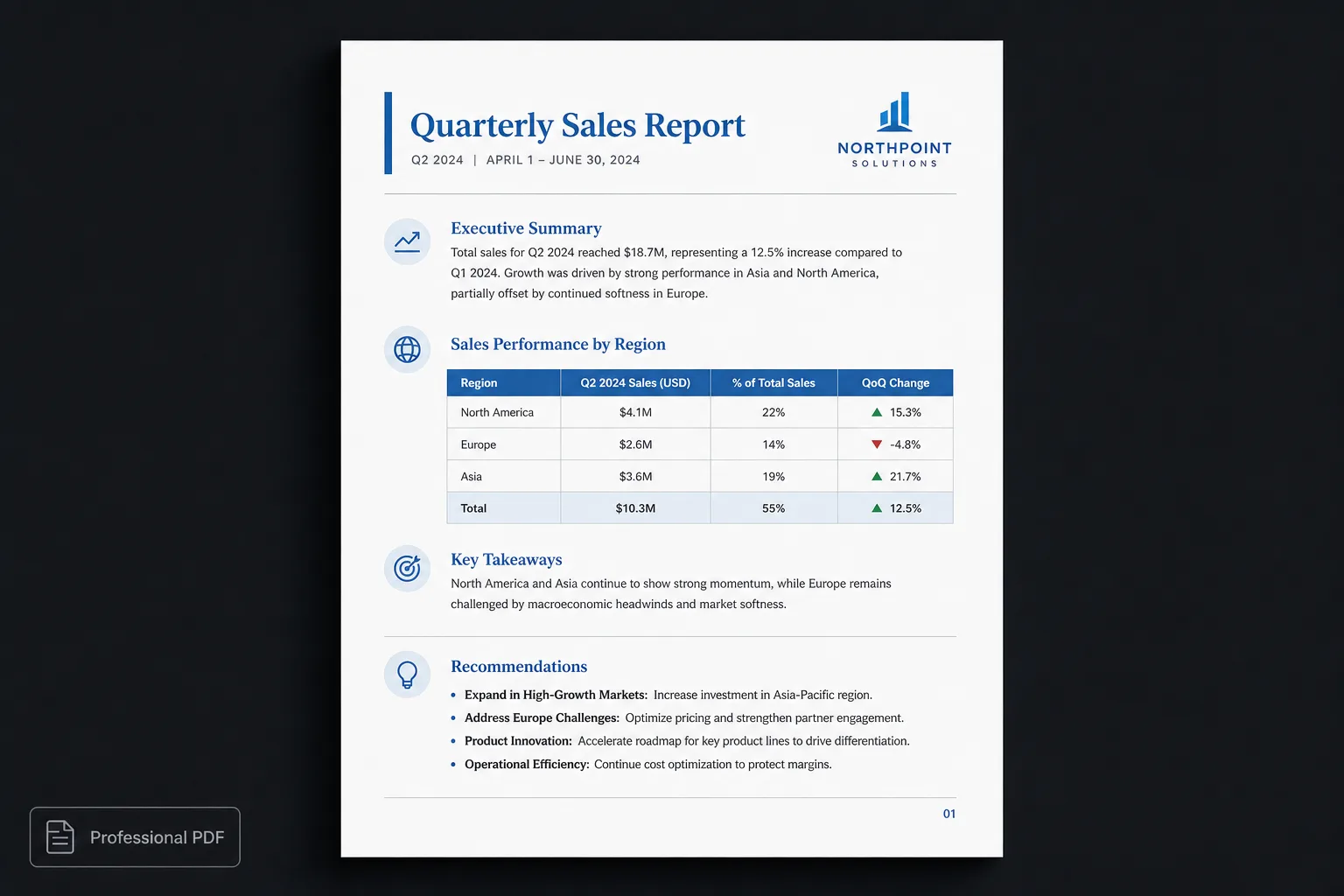
The problem isn’t creating a PDF
Creating a PDF is easy. Almost every editor includes an Export to PDF button. The challenge is making the document look professional before exporting.
A typical ChatGPT response already contains:
- Headings
- Lists
- Tables
- Code blocks
- Links
- Quotes
Unfortunately, much of that structure is often lost—or requires manual cleanup—after being copied into another editor. The result is extra work before the document is ready to share.
Keep the structure
ChatGPT naturally generates structured content. Instead of stripping that structure away, preserve it. If possible, ask ChatGPT to respond in Markdown. For example:
# Product Launch Plan
## Goals
## Timeline
## Risks
## Budget
## Next Steps
That creates a clean, structured document that’s easier to edit and much easier to publish.
Publish instead of reformat
Traditional workflow:
- ChatGPT
- Copy into Word
- Fix formatting
- Adjust spacing
- Export PDF
A publishing workflow is simpler:
- ChatGPT
- Markdown
- Publication theme
- Preview
- Professional PDF
The content stays the same. Only the presentation changes.
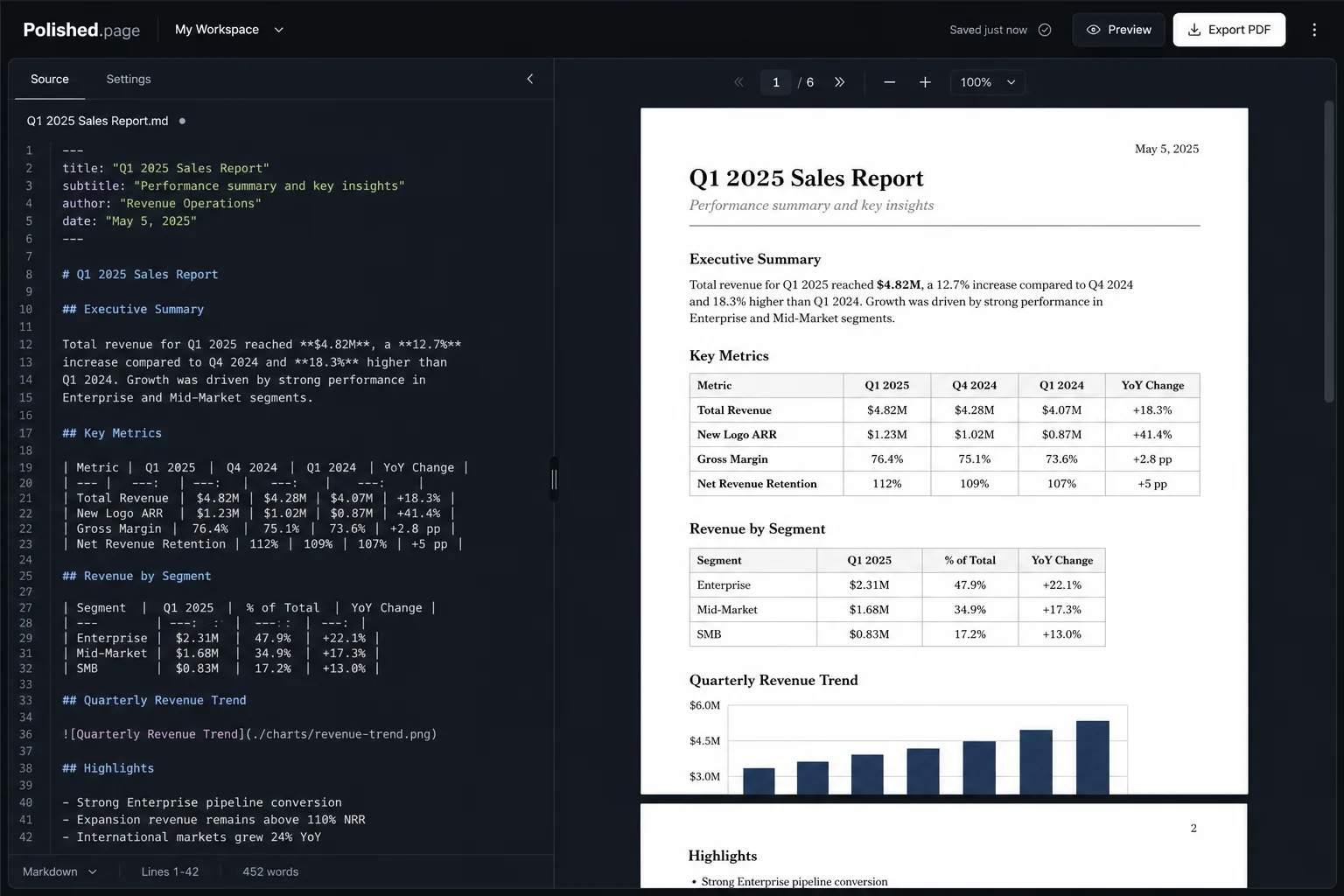
Why presentation matters
Readers form an impression within seconds. Professional documents typically include:
- Consistent typography
- Balanced spacing
- Clear section hierarchy
- Professional tables
- Logical page breaks
- Page numbers
- Cover pages
- Cohesive design
These elements improve readability and help the document feel credible.
AI is excellent at writing
AI is remarkably good at:
- Organizing information
- Explaining concepts
- Creating outlines
- Writing first drafts
- Summarizing content
It deliberately leaves presentation flexible because different audiences need different designs. That’s where publishing tools become valuable.
One report, multiple versions
Imagine asking ChatGPT to generate a quarterly business report. That same report could become:
- A board presentation
- An internal report
- A client deliverable
- Investor documentation
The information remains identical. Only the publication theme changes. One document can serve multiple audiences without maintaining separate copies.
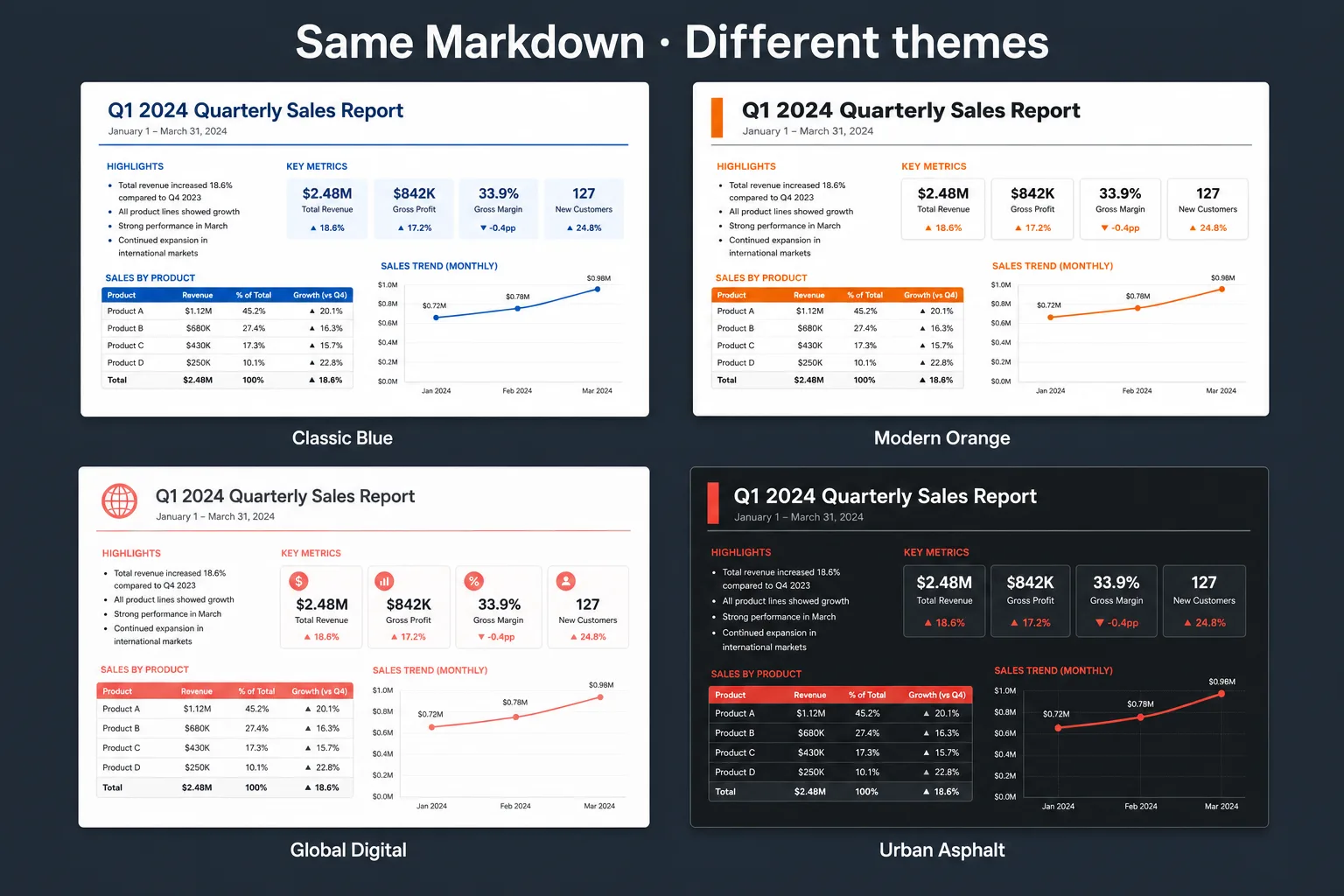
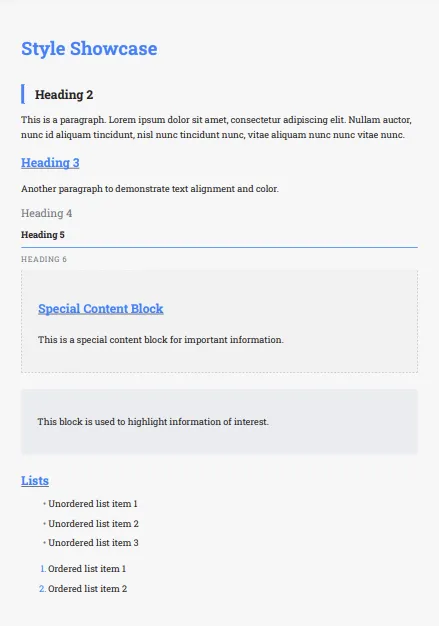
Classic Blue 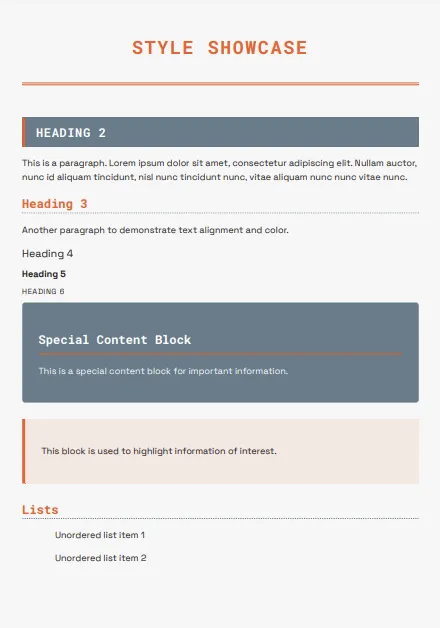
Modern Orange 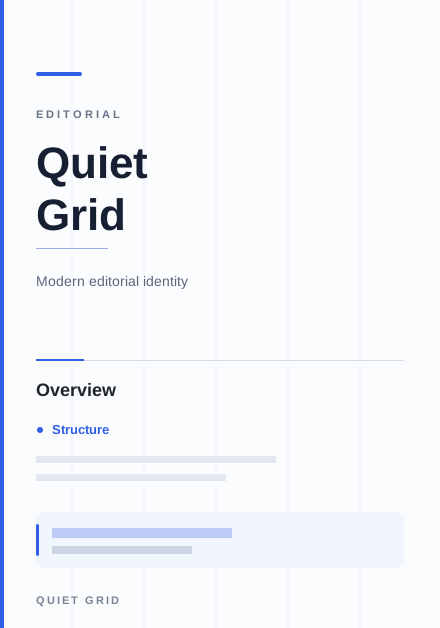
Quiet Grid 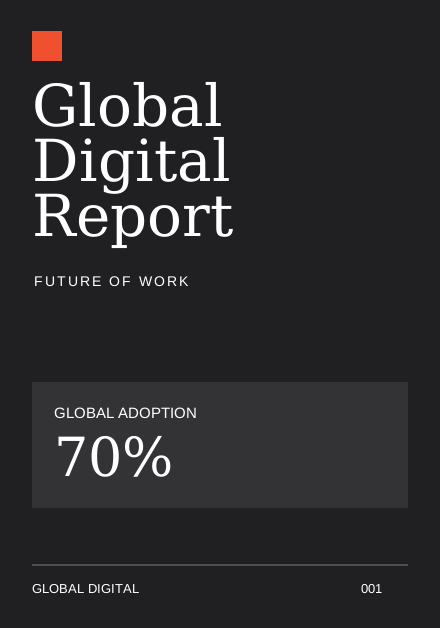
Global Digital
Why Markdown fits AI so well
Markdown describes the meaning of content rather than its appearance. It defines:
- Headings
- Lists
- Tables
- Images
- Quotes
- Code blocks
Presentation is applied later during publishing. Because AI already understands Markdown, it naturally fits this workflow.
Features that help create better PDFs
Polished.page includes publishing features such as:
- Publication themes
- Cover pages
- Automatic table of contents
- Running headers and footers
- Page numbering
- Tables
- Images
- Mermaid diagrams
- Callouts
- YAML front matter
- Live paginated preview
- Professional PDF export
Rather than manually styling each page, you choose the presentation once and apply it consistently across the document.
Example
Here is a realistic ChatGPT-style Markdown draft you can open in the editor, theme, and export as a PDF:
---
title: Product Launch Plan
theme: 14
pageSize: letter
orientation: portrait
coverPage: true
tableOfContents: true
pageNumbers: true
---

# Product Launch Plan

## Goals

Ship the Q3 product update to existing customers first, then open general
availability two weeks later. Success means activation above 60% in the first
month and support ticket volume staying within the current baseline.

## Timeline

| Phase | Window | Owner |
| --- | --- | --- |
| Internal dogfood | Week 1–2 | Product + Eng |
| Existing-customer rollout | Week 3 | Customer Success |
| General availability | Week 5 | Marketing + Eng |
| Post-launch review | Week 7 | Leadership |

## Risks

1. Support documentation may lag the final UI copy.
2. Billing edge cases still need a final QA pass.
3. Launch messaging depends on legal review completing on schedule.

## Budget

Creative production and paid amplification sit inside the approved launch
envelope. Contingency is reserved for support surge coverage only.

## Next Steps

- Finalize help-center articles before dogfood ends
- Confirm billing QA sign-off
- Export the themed launch plan for the stakeholder review
Direct editor entry point: /?example=chatgpt-to-pdf
The same product-launch Markdown becomes a paginated PDF with a cover, table of contents, styled timeline table, and page numbers—under a corporate publication theme such as Classic Blue.
Frequently asked questions
Can ChatGPT export directly to PDF?
ChatGPT can generate the content, but creating a polished PDF typically requires another tool to handle typography, layout, and export. Polished.page turns structured drafts into print-ready documents with publication themes.
Should I copy ChatGPT into Word?
You can, but for longer documents it often leads to extra formatting work. Preserving the document’s structure—especially as Markdown—usually produces more consistent results with less cleanup.
Why ask ChatGPT for Markdown?
Markdown keeps the document structured while remaining easy to edit and compatible with modern publishing workflows. Headings, lists, and tables stay predictable instead of collapsing into plain pasted text.
Can I edit the document before exporting?
Yes. The content remains fully editable in source before you generate the final PDF. Refine the draft, preview the pages, then export when it looks right.
Does this only work for ChatGPT?
No. The same workflow applies to Claude, Gemini, Cursor, Codex, and other AI assistants that can produce structured content.
Can I change the design later?
Yes. Publication themes separate presentation from content, so you can restyle the document without rewriting it.
Final thoughts
AI has dramatically reduced the time required to write documents. The next opportunity is reducing the time required to publish them.
Instead of rebuilding formatting every time you create a report, preserve the structure, apply a publication theme, and generate a PDF that’s ready to share.
Write with AI. Review your ideas. Publish professionally.
Keep exploring
- Open the Polished.page editor
- Convert ChatGPT Markdown to PDF
- Write professional documents with ChatGPT
- Format a ChatGPT report professionally
- How to make a PDF look professional
- Professional document templates
- AI document formatting
- Markdown to PDF
- Apply a theme to an entire document
- Browse publication themes
- More guides