Markdown to PDF: Create Professional PDFs from Markdown
You can convert Markdown to PDF.
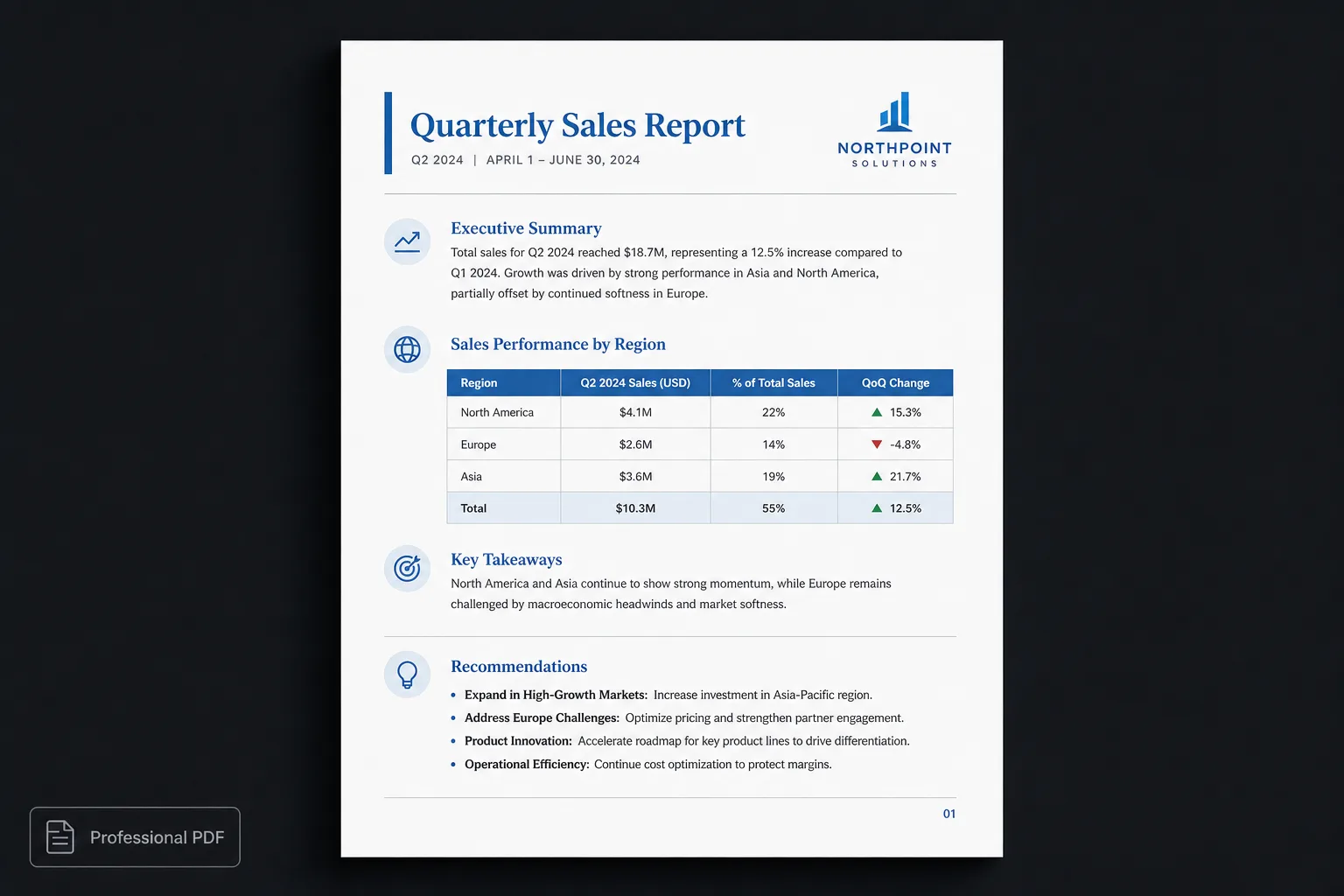
The harder question is whether the result looks published.
Markdown is how developers, researchers, technical writers, and AI assistants already write. When the deliverable has to be a PDF, quality depends on presentation—not on whether a converter can emit a file.
The last mile after Markdown
Markdown has become one of the most popular ways to write documents. It’s simple, portable, and easy to read. Developers use it for documentation, researchers use it for notes, technical writers publish books with it, and modern AI assistants generate it by default.
Eventually, though, most Markdown documents need to become PDFs. Whether you’re sending a proposal, publishing documentation, or sharing a report, PDF remains the most widely accepted final format.
The question isn’t simply how to convert Markdown into PDF. It’s how to create a PDF that looks professionally designed.
Why Markdown is great for writing
Markdown focuses on structure rather than appearance. Instead of choosing fonts, colors, and spacing while writing, you describe the content:
# Quarterly Review
## Executive Summary
## Revenue
## Risks
## Recommendations
The document remains clean, readable, and easy to edit. That structure is what makes Markdown such a good foundation for publishing.
Converting isn’t publishing
Many tools convert Markdown into a PDF. The resulting document usually contains:
- Headings
- Lists
- Tables
- Images
- Links
Technically, the conversion is successful. Visually, however, the PDF often looks generic. Readers rarely remember that a document was “correctly converted.” They remember whether it looked polished.
What makes a professional PDF?
Professional documents rely on consistency. Every page should feel like part of the same publication. That includes:
- Typography
- Margins
- Heading hierarchy
- Tables
- Images
- Page numbering
- Headers and footers
- Cover pages
- Table of contents
- Whitespace
These details make documents easier to read and more enjoyable to navigate.
Publish instead of convert
A publishing workflow separates content from presentation. The Markdown remains unchanged. A publication theme determines how every element should appear.
That means you can write once while presenting the document in different styles depending on your audience. The content stays identical. Only the presentation changes.
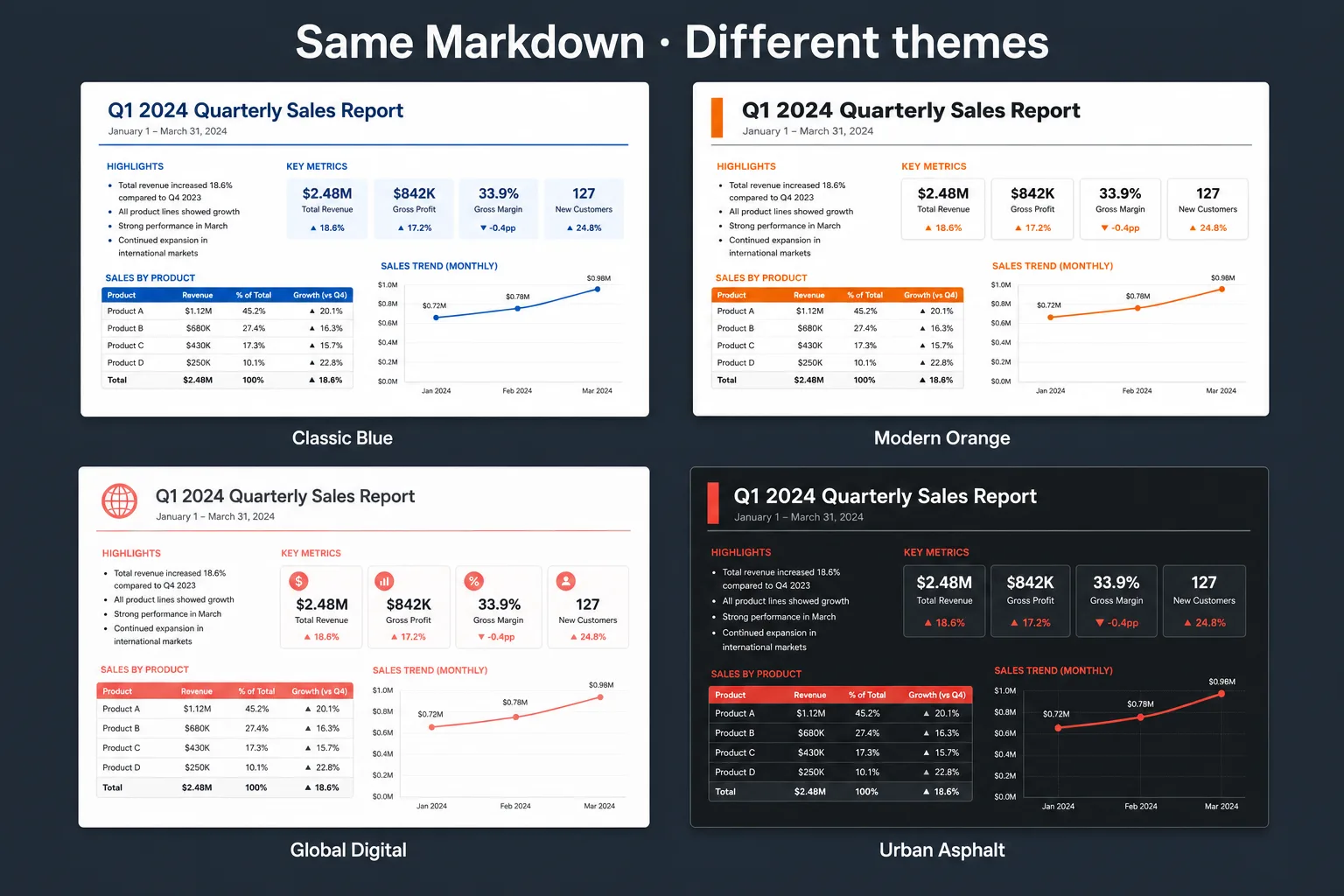
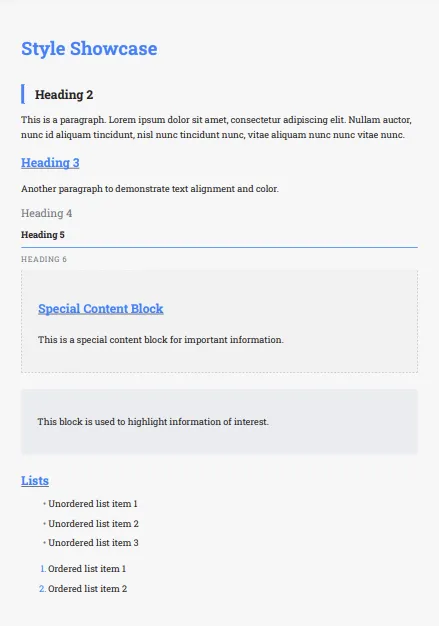
Classic Blue 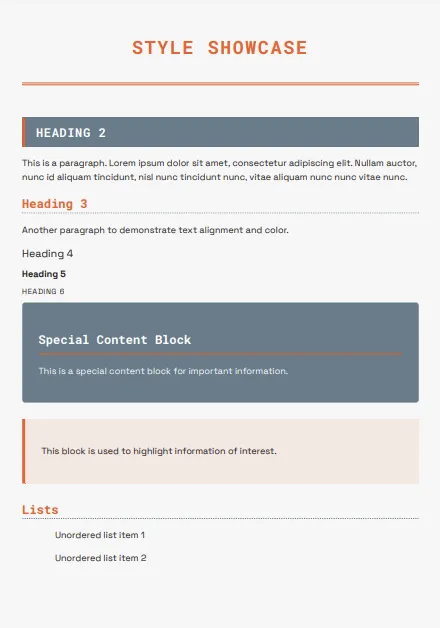
Modern Orange 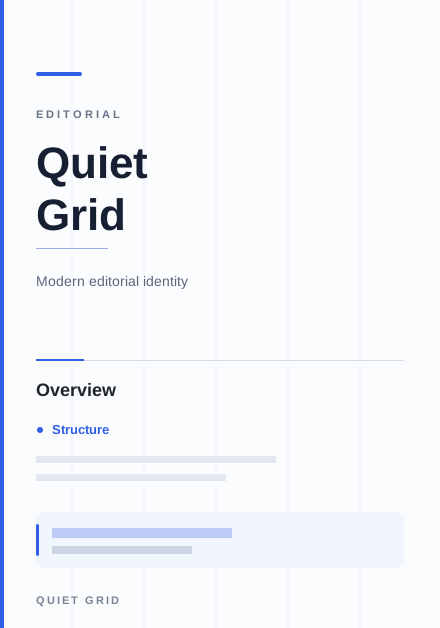
Quiet Grid 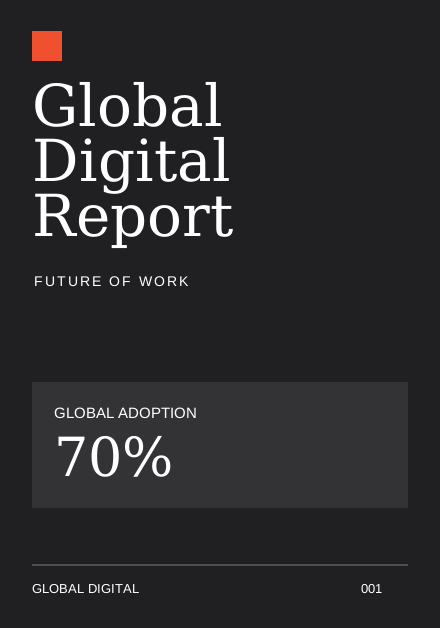
Global Digital
A better workflow
Instead of:
- Markdown
- Convert
- Fix formatting
- Export again
Try:
- Markdown
- Choose a publication theme
- Preview every page
- Export a professional PDF
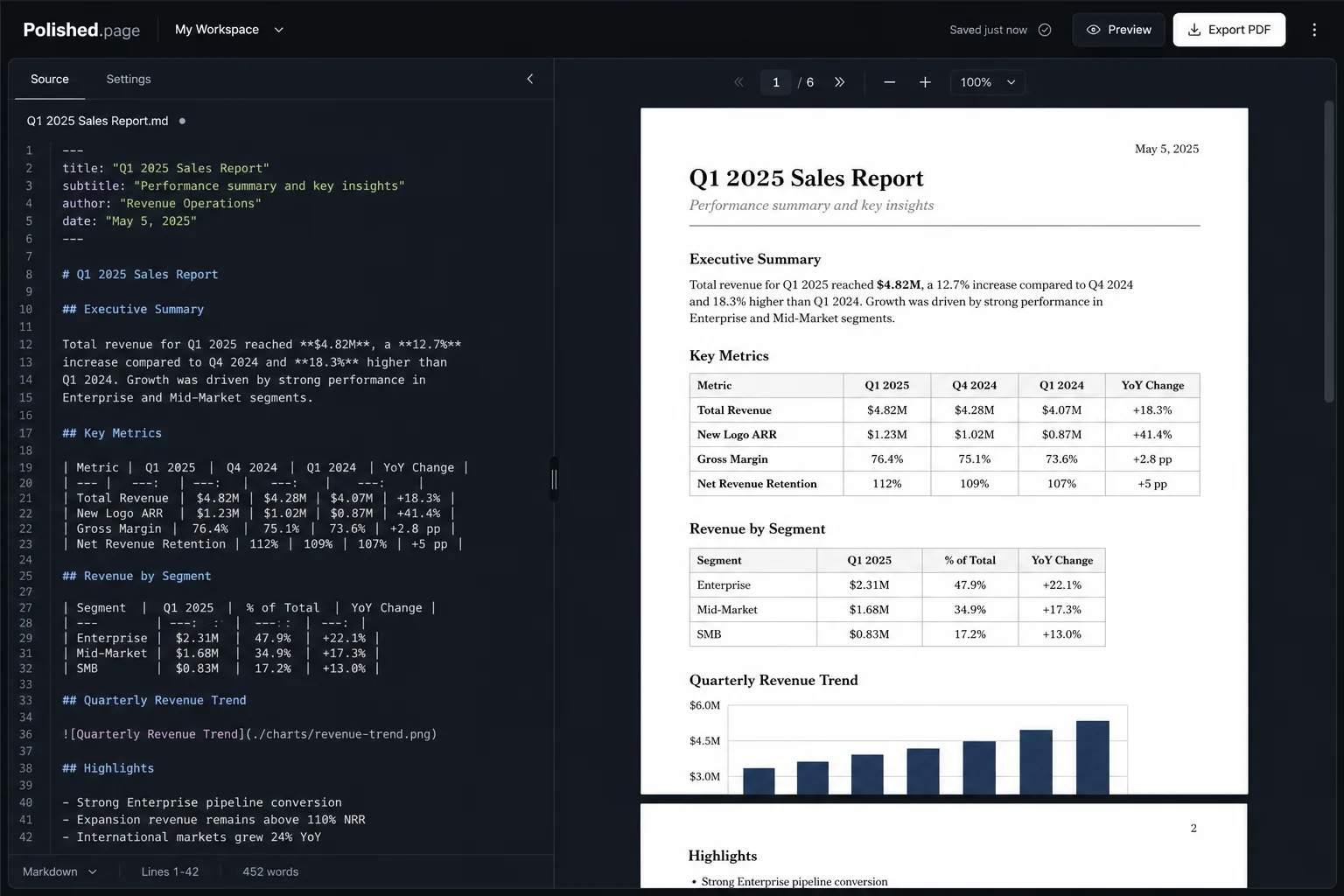
Because the formatting is handled by the publication theme, there is little or no manual cleanup before publishing.
| Basic converter | Polished.page |
|---|---|
| Emit a basic PDF | Theme the whole publication first |
| Render Markdown syntax | Apply publication typography |
| Fix layout after convert | Preview real pages before export |
| One look per file | Switch themes without rewriting content |
| Convert, then format | Publish, then export PDF |
AI makes this workflow even better
Modern AI assistants naturally generate Markdown. That means your report, proposal, or documentation already contains useful structure.
Instead of copying formatted text into another editor and rebuilding the layout, you can preserve that structure and publish directly. This creates a faster workflow with more consistent results.
One Markdown document, many presentations
Imagine writing a software architecture document. Different audiences still need different presentation:
- Engineering — A technical layout that keeps diagrams and tables dense but readable
- Executives — A cleaner business presentation with clearer hierarchy
- Clients — A polished deliverable that feels ready to send
Instead of maintaining multiple versions, one Markdown source can produce multiple professionally designed PDFs using different publication themes. The information stays synchronized while the presentation adapts to each audience.
Live example
Open this system architecture overview in the editor. Theme it, review the pages, and export PDF when you are ready.
---
title: System Architecture Overview
theme: 14
pageSize: letter
orientation: portrait
coverPage: true
tableOfContents: true
pageNumbers: true
---

# System Architecture Overview

## Purpose

This brief describes the services that power the customer workspace, where
data lives, and how requests move from the browser to persistence.

## Service Map

| Service | Role | Notes |
| --- | --- | --- |
| Edge gateway | Auth and routing | Terminates TLS, attaches session claims |
| Workspace API | Document CRUD | Owns drafts, themes, and export jobs |
| Render worker | Pagination and PDF | Isolates font and diagram work |
| Object store | Assets | Images and generated exports |

## Request Path

```mermaid
flowchart LR
  A[Browser editor] --> B[Edge gateway]
  B --> C[Workspace API]
  C --> D[Render worker]
  D --> E[PDF export]
```

## Risks

1. Render jobs can queue when Mermaid diagrams are large.
2. Asset URLs must stay local-first until export is complete.
3. Theme changes should not rewrite Markdown source.

## Recommendations

- Keep Markdown as the single source of truth
- Apply a publication theme per audience
- Preview every page before sending the PDF
Direct editor entry point: /?example=markdown-pdf
The same architecture Markdown becomes a paginated PDF with a cover, table of contents, consistent headings, a service table, a Mermaid request path, and page numbers under a corporate theme such as Classic Blue.
Features for publishing Markdown
Polished.page includes publishing features designed specifically for Markdown. Rather than producing a generic PDF, the publishing engine creates documents intended to be shared:
- Publication themes
- Cover pages
- Automatic table of contents
- Page numbering
- Running headers and footers
- Tables
- Images
- Mermaid diagrams
- Callouts
- YAML front matter
- Live paginated preview
- Professional PDF export
Frequently asked questions
Can Markdown be converted to PDF?
Yes. Many tools convert Markdown into PDF. The biggest difference between them is how much attention they give to typography, layout, and overall presentation.
Why do some Markdown PDFs look plain?
Most converters focus on faithfully rendering Markdown syntax rather than applying a polished publication design. The result is technically correct but visually minimal.
Does Markdown support images and tables?
Yes. Standard Markdown supports images, tables, lists, headings, links, and many other structural elements. Extended Markdown adds even more capabilities.
Can ChatGPT generate Markdown for PDF?
Yes. ChatGPT naturally generates structured Markdown, making it an excellent starting point for professional reports and documentation.
Why use publication themes?
Publication themes allow the same Markdown document to be presented with different visual identities without changing the content itself.
Can I preview the PDF before exporting?
Yes. A live paginated preview makes it easy to identify layout issues, page breaks, and spacing before generating the final PDF.
Final thoughts
Markdown has become one of the best formats for creating structured documents. The remaining challenge isn’t writing. It isn’t even converting. It’s publishing.
By separating content from presentation, you can create PDFs that are consistent, readable, and visually polished without manually redesigning every document.
Write in Markdown. Apply a publication theme. Publish with confidence.
Keep exploring
- Open the Polished.page editor
- Convert ChatGPT to PDF
- Convert ChatGPT Markdown to PDF
- How to make a PDF look professional
- Markdown to Word
- Apply a theme to an entire document
- Professional document templates
- AI document formatting
- How to format a report
- Write professional documents with ChatGPT
- Browse publication themes
- Document templates
- More guides