Markdown to Word: Convert Markdown into a Professional Word Document
You can convert Markdown to Word.
The harder question is whether the result looks finished.
Markdown is how developers, technical writers, and AI assistants already write. When the deliverable has to be a Word file, quality depends on presentation, not on whether a converter can emit a .docx.
Should you even convert it first?
Markdown has become the default writing format for developers, technical writers, and AI assistants such as ChatGPT, Claude, Gemini, and Cursor. Its simplicity keeps you on structure instead of fonts, margins, and page layout.
Eventually most documents still need to be shared as Microsoft Word files. Proposals, reports, manuals, and technical documentation often arrive with a .docx requirement. The useful question is not only how to convert Markdown into Word. It is how to do that without losing the quality of the finished document.
That answer depends on what you are trying to preserve: the words, or the sense that someone designed the pages.
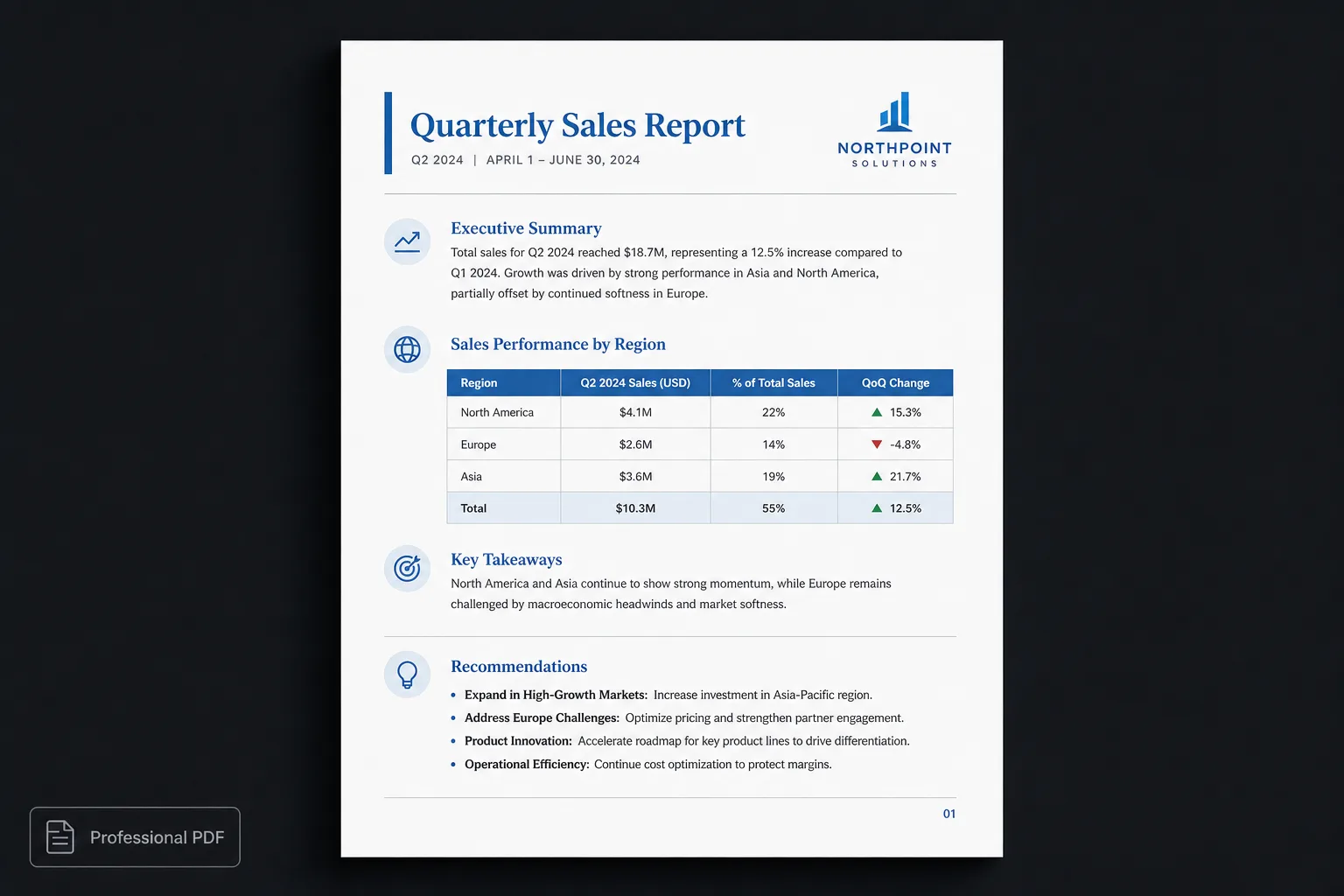
What happens during conversion?
Markdown describes structure. It marks headings, lists, tables, links, images, code, and quotes. Word stores content and visual presentation together. A converter has to decide how every Markdown element should look inside that file.
- Headings
- Lists
- Tables
- Links
- Images
- Code blocks
- Quotes
Some tools emit a basic document. Others try to recreate formatting more carefully. Results vary quickly once the document grows beyond a short note.
Common conversion problems
Many Markdown-to-Word converters are fine for short drafts and struggle with larger publications. The file opens. The structure is there. It still does not feel professionally published:
- Inconsistent heading styles
- Plain-looking tables
- Broken page breaks
- Oversized images
- Missing syntax highlighting
- Weak typography
- Generic cover pages
- Layouts that never quite feel published
Conversion isn’t the hard part
Creating a Word document from Markdown is relatively straightforward. Creating a document that looks polished is harder. Professional documents need more than basic formatting:
- Clear visual hierarchy
- Consistent typography
- Balanced spacing
- Readable tables
- Stable page layouts
- Reliable page numbering
- Cover pages that look intentional
Simply converting the file does not automatically produce those qualities.
A better workflow
Instead of converting first and formatting later, treat publishing as its own step. With Polished.page the loop looks like this:
- Write in Markdown.
- Generate sections with AI if that helps.
- Apply a publication theme.
- Review the finished pages.
- Export to Word or PDF from the same source.
Because presentation is theme-driven, headings, tables, and page chrome stay visually consistent. You review pages that already look intentional, then download the format you need.
| Basic converter | Polished.page |
|---|---|
| Emit a basic .docx | Theme the whole publication first |
| Hope headings stay consistent | Theme-defined hierarchy |
| Restyle tables in Word | One table style everywhere |
| Fix page breaks after convert | Review real pages before export |
| Rebuild for a new look | Switch publication theme |
| Convert, then format | Publish, then download Word or PDF |
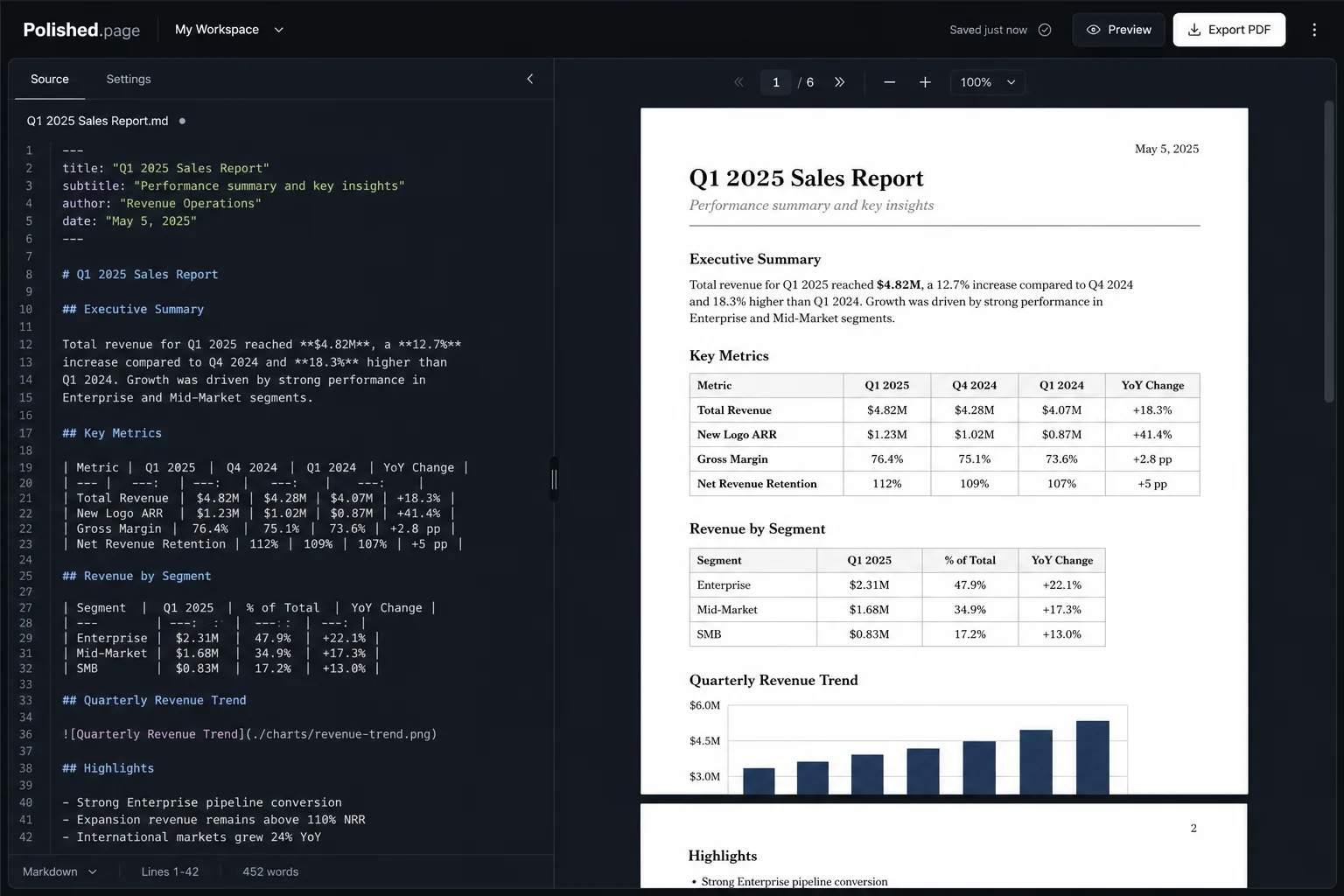
Why write in Markdown?
Markdown keeps writing focused on content. Instead of deciding whether a heading should be 18 or 20 points, you write:
# Introduction
## Background
## Objectives
The publication theme decides how those headings appear. Documents stay easier to edit, easier to maintain, and much easier to restyle later.
AI and Markdown
Most modern AI assistants already generate Markdown. That means your draft often has semantic structure before it ever reaches a word processor. Keeping that structure intact usually produces cleaner, more consistent documents than repeatedly copying formatted text between applications.
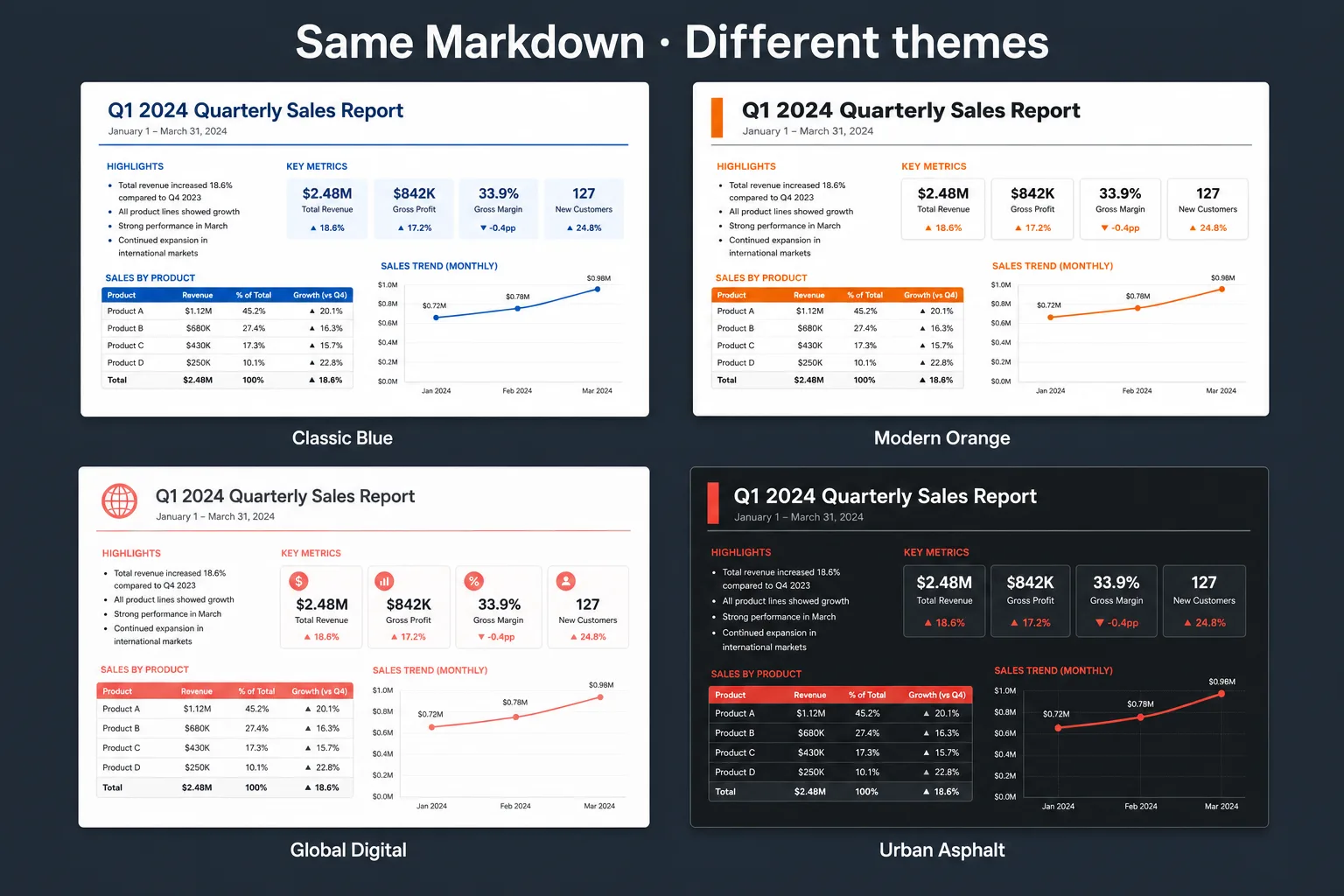
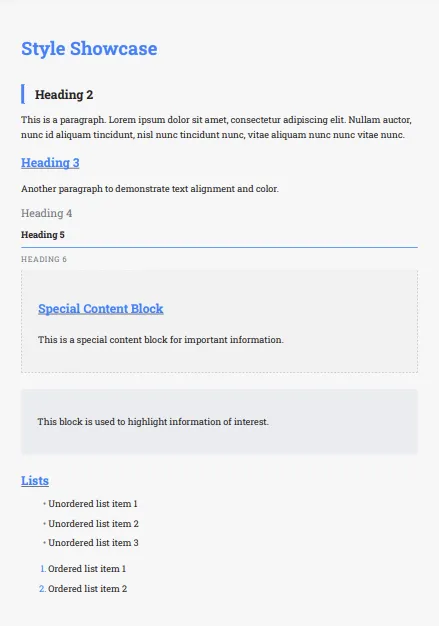
Classic Blue 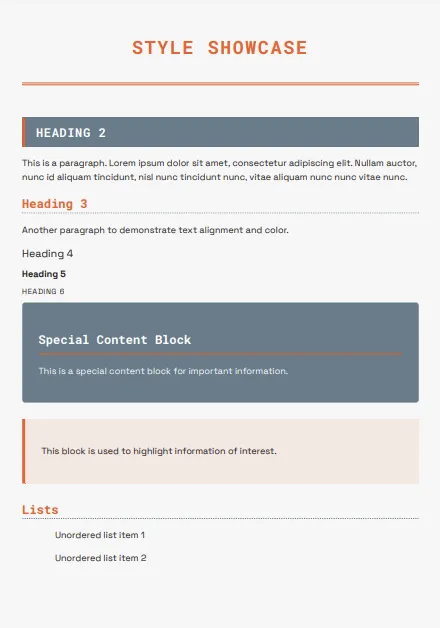
Modern Orange 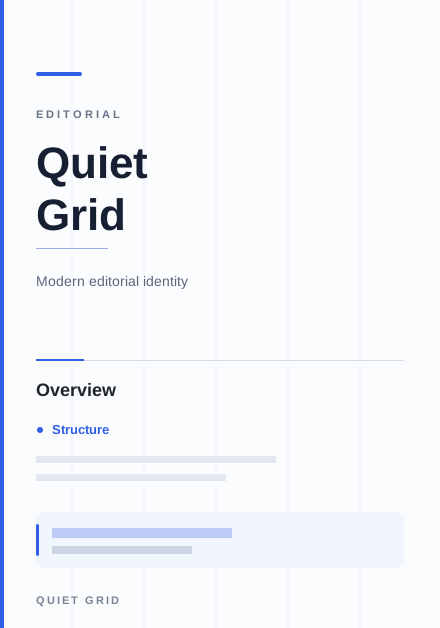
Quiet Grid 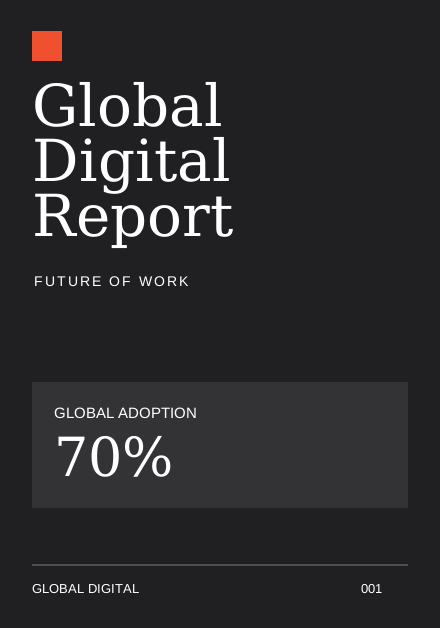
Global Digital
Professional documents need more than conversion
A polished document is not defined by its file format. Whether the output is PDF or Word, readers notice:
- Consistent headings
- Professional typography
- Clean spacing
- Attractive tables
- Logical page flow
- Readable diagrams
- A cohesive design
Those qualities come from presentation choices, not from the act of conversion itself.
Live example
Open this vendor-evaluation brief in the editor. Theme it, review the pages, and export Word or PDF when you are ready.
---
title: Vendor Evaluation Brief
theme: 14
pageSize: letter
orientation: portrait
coverPage: true
tableOfContents: true
pageNumbers: true
---

# Vendor Evaluation Brief

## Recommendation

Proceed with a limited pilot. The shortlisted vendor meets the technical bar,
and the commercial terms leave room to expand after the first quarter.

## Scorecard

| Criterion | Weight | Score | Notes |
| --- | ---: | ---: | --- |
| Security | 30% | 4.5 | SOC 2 Type II and SSO already available |
| Integration | 25% | 4.0 | REST API covers the core flows we need |
| Support | 20% | 3.5 | Regional coverage is thinner outside the US |
| Total cost | 25% | 4.0 | Competitive once volume discounts apply |

## Risks and Mitigations

1. Confirm data residency options before signing the pilot order form.
2. Require a named success manager for the first 90 days.
3. Keep the existing tool online until the pilot checklist is complete.

## Decision Flow

```mermaid
flowchart LR
  A[Markdown brief] --> B[Publication theme]
  B --> C[Review pages]
  C --> D[Export Word or PDF]
```

## Next Steps

- Circulate this brief to legal and security
- Schedule a kickoff with the vendor success team
- Capture acceptance criteria before the pilot start date
Direct editor entry point: /?example=markdown-to-word
The same vendor-evaluation Markdown becomes a paginated brief with a cover, table of contents, consistent headings, a scored table, a Mermaid decision flow, and page numbers under a corporate theme such as Classic Blue, ready to export as Word or PDF.
Features designed for professional publishing
Polished.page supports modern document workflows so the goal is a document you are comfortable sharing, not only another file on disk:
- Standard Markdown
- YAML front matter
- Publication themes
- Cover pages
- Automatic table of contents
- Images
- Tables
- Mermaid diagrams
- Callouts
- Procedures
- Live paginated preview
- Professional PDF export
- Editable Word (.docx) export
Frequently asked questions
Can Markdown be converted to Word?
Yes. Markdown can become a Microsoft Word document while preserving headings, lists, tables, and other structural elements. Final quality depends on how the converter handles formatting and layout, not only whether a .docx file is produced.
Will I lose formatting?
Standard Markdown structure is usually preserved. Advanced elements such as diagrams, callouts, and cover layouts depend on the tool. Polished.page keeps the semantic structure and applies a publication theme before you export Word or PDF.
Why not write directly in Word?
Markdown is often faster to write, easier to version, easier for AI assistants to generate, and simpler to restyle later. Word remains useful for collaboration and final edits; many teams draft in Markdown and publish into Word when a .docx is required.
Can ChatGPT create Word documents?
ChatGPT typically generates structured content, often in Markdown. That content can then be published into professional formats such as PDF and Word. Polished.page is built for that handoff: paste the Markdown, theme it, and export.
Does Polished.page export Word documents?
Yes. Polished.page can download an editable Word (.docx) file from the same Markdown source used for PDF export, after local assets and diagrams are ready. PDF remains the print-ready path; Word is the editable deliverable.
Why use publication themes?
Publication themes let the same content take on different visual identities without redesigning the document by hand. Headings, tables, covers, and page chrome stay consistent because presentation comes from the theme, not from one-off formatting.
Final thoughts
Markdown stays popular with technical teams and AI-assisted workflows because it keeps content clean, portable, and easy to edit. The real challenge is not converting Markdown into Word. It is producing documents that look professionally designed regardless of the final format.
Separate content from presentation: write once, apply a publication theme, and publish consistently whether the destination is Word or PDF.
Conversion gets you a file. Publishing gets you a document people will read.
Keep exploring
- Open the Polished.page editor
- How to format a report
- AI document formatting
- Make a Word document look professional
- Markdown to PDF
- Convert ChatGPT Markdown to PDF
- Format a ChatGPT report professionally
- Write professional documents with ChatGPT
- Apply a theme to an entire document
- Browse publication themes
- Document templates
- More guides