Professional Document Templates: Build Better Documents Faster
Templates solve structure.
Themes solve presentation.
You probably need both.
Starting a proposal, technical specification, business report, or project plan usually begins with the same question: where do I begin? Professional document templates organize the sections. Publication themes finish the look.
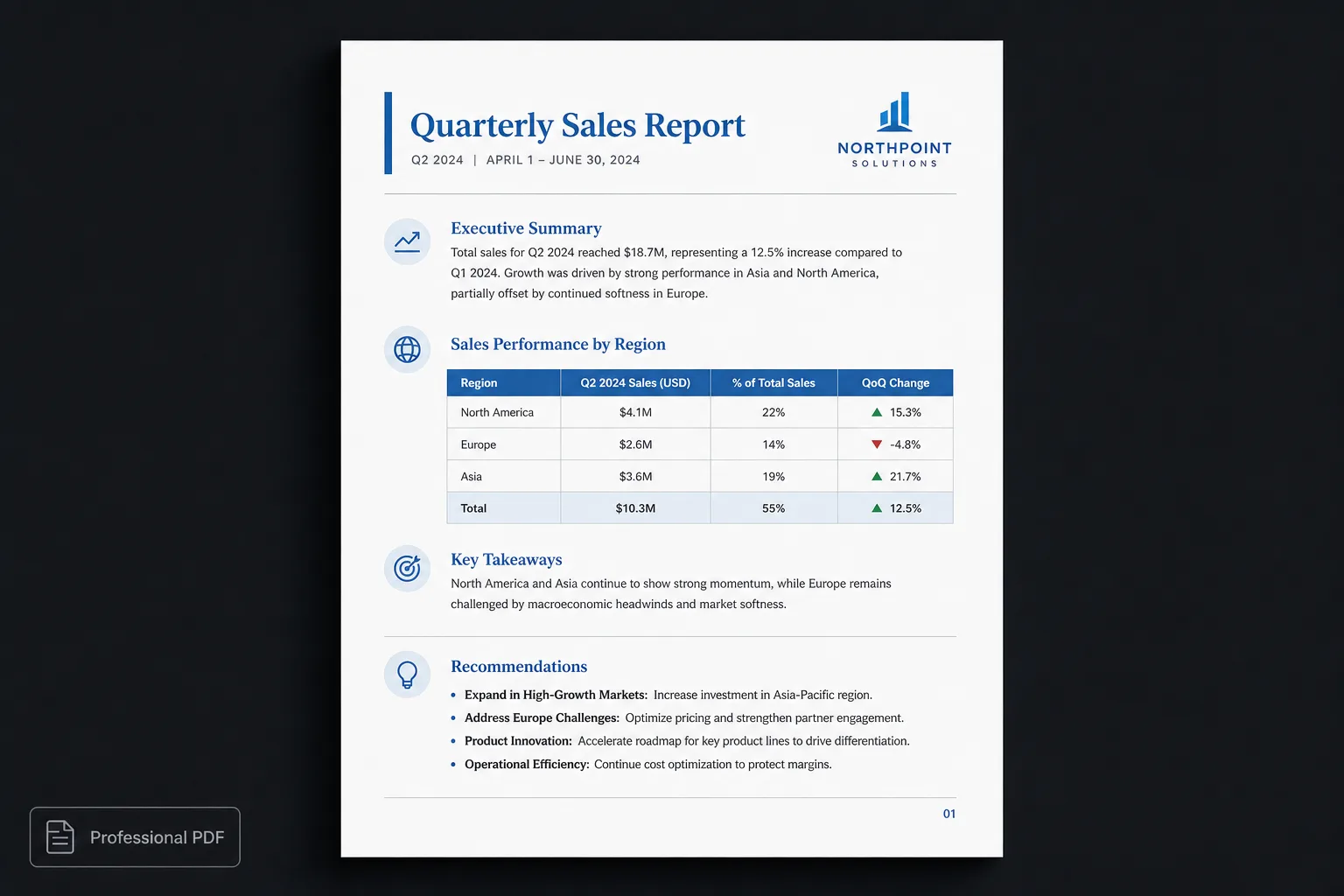
Starting a new document can be intimidating
Whether you’re preparing a proposal, technical specification, business report, or project plan, the first question is often the same: where do I begin?
Professional document templates provide a starting point by organizing common sections and reducing repetitive work. They help you focus on the information instead of recreating the same document structure every time.
But structure is only half the story. A professional document also needs consistent presentation.
What is a document template?
A document template defines the overall structure of a document.
For example, a project proposal template might include:
- Cover page
- Executive summary
- Project overview
- Scope
- Timeline
- Budget
- Risks
- Conclusion
Instead of starting from a blank page, you begin with an organized framework. Templates improve consistency and reduce the chance of forgetting important sections.
Templates don’t control design
Many people expect a template to make a document look professional. In reality, most templates only provide structure.
After filling in the content, users often spend considerable time:
- Adjusting typography
- Restyling tables
- Fixing spacing
- Aligning images
- Creating page numbers
- Improving the cover page
- Exporting a PDF
The template solved the organization. It didn’t solve the presentation.
| Template-only workflow | Polished.page |
|---|---|
| Template mixes outline and fonts | Template for structure, theme for presentation |
| Restyle after every fill-in | Fill sections, then apply a theme |
| Duplicate files for each look | One source, many publication themes |
| AI drafts into a blank page | AI fills a clear section framework |
| Hope the next export matches | Centralized presentation across documents |
Structure and presentation are different
Think of a document as two independent layers.
Structure answers
- What sections exist?
- What information belongs in each section?
- What order should readers follow?
Presentation answers
- How should headings look?
- Which typography should be used?
- How should tables appear?
- How much spacing should separate sections?
- What should the cover page look like?
These layers evolve independently. Changing one shouldn’t require rebuilding the other.
A modern workflow
Instead of relying on a template alone:
- Start with a document structure.
- Write or generate the content.
- Apply a publication theme.
- Review the final pages.
- Publish the document.
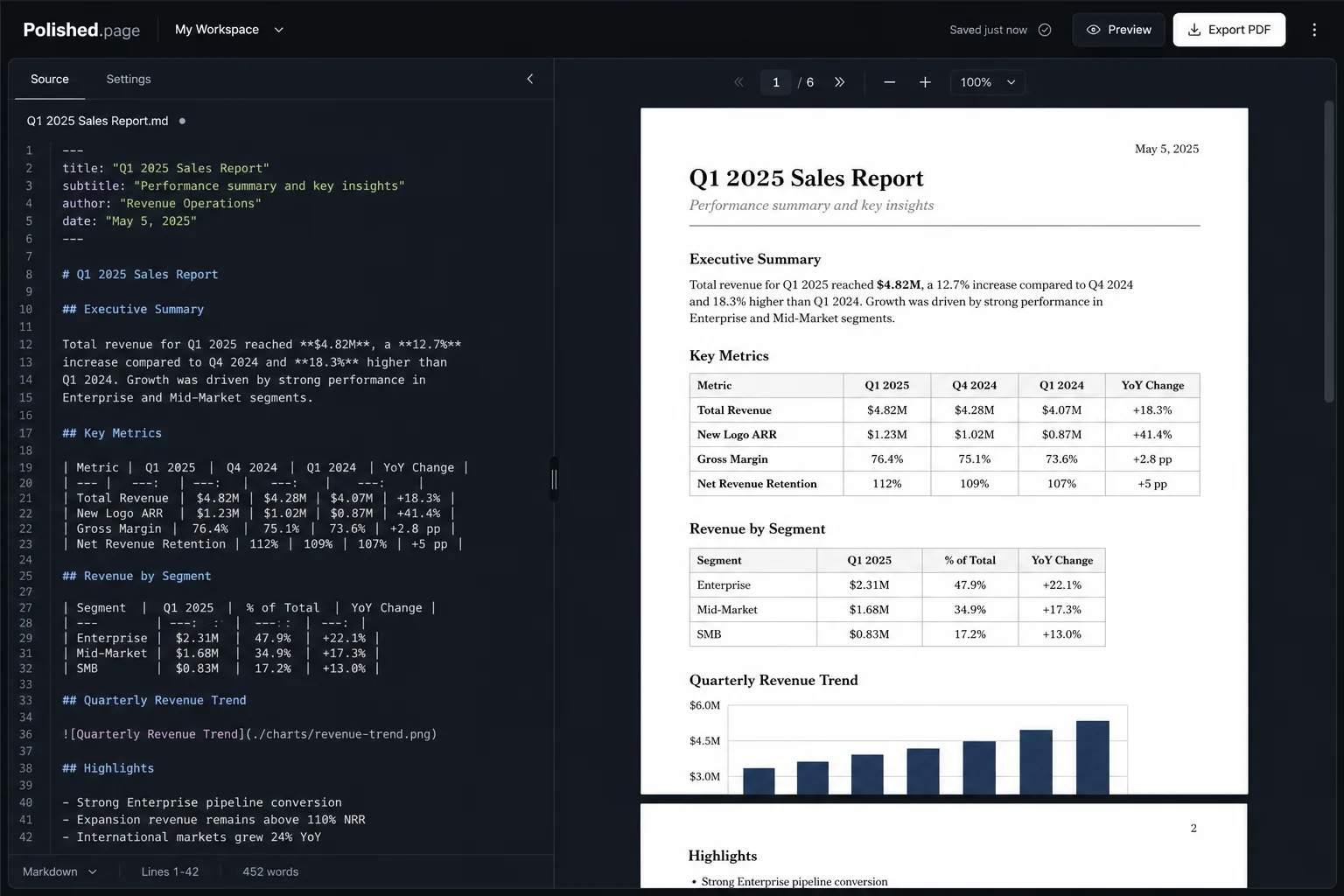
This approach keeps your content reusable while ensuring every document has a consistent visual identity. See also how to apply a theme to an entire document.
AI makes templates even more useful
Today, many people ask AI to generate the first draft of a document. Instead of writing “Executive Summary,” they ask ChatGPT or Claude to generate the complete section.
The document still benefits from a clear template because AI fills an existing structure more effectively than an empty page. The result is a faster workflow without sacrificing organization. For the broader AI path, read AI document formatting.
One template, many publications
Imagine a standard consulting proposal. Every client receives:
- Executive summary
- Objectives
- Scope
- Timeline
- Pricing
- Deliverables
The structure rarely changes. The presentation might. A premium proposal could use an elegant publication theme. An internal review could use a simpler technical theme. The underlying document remains the same.
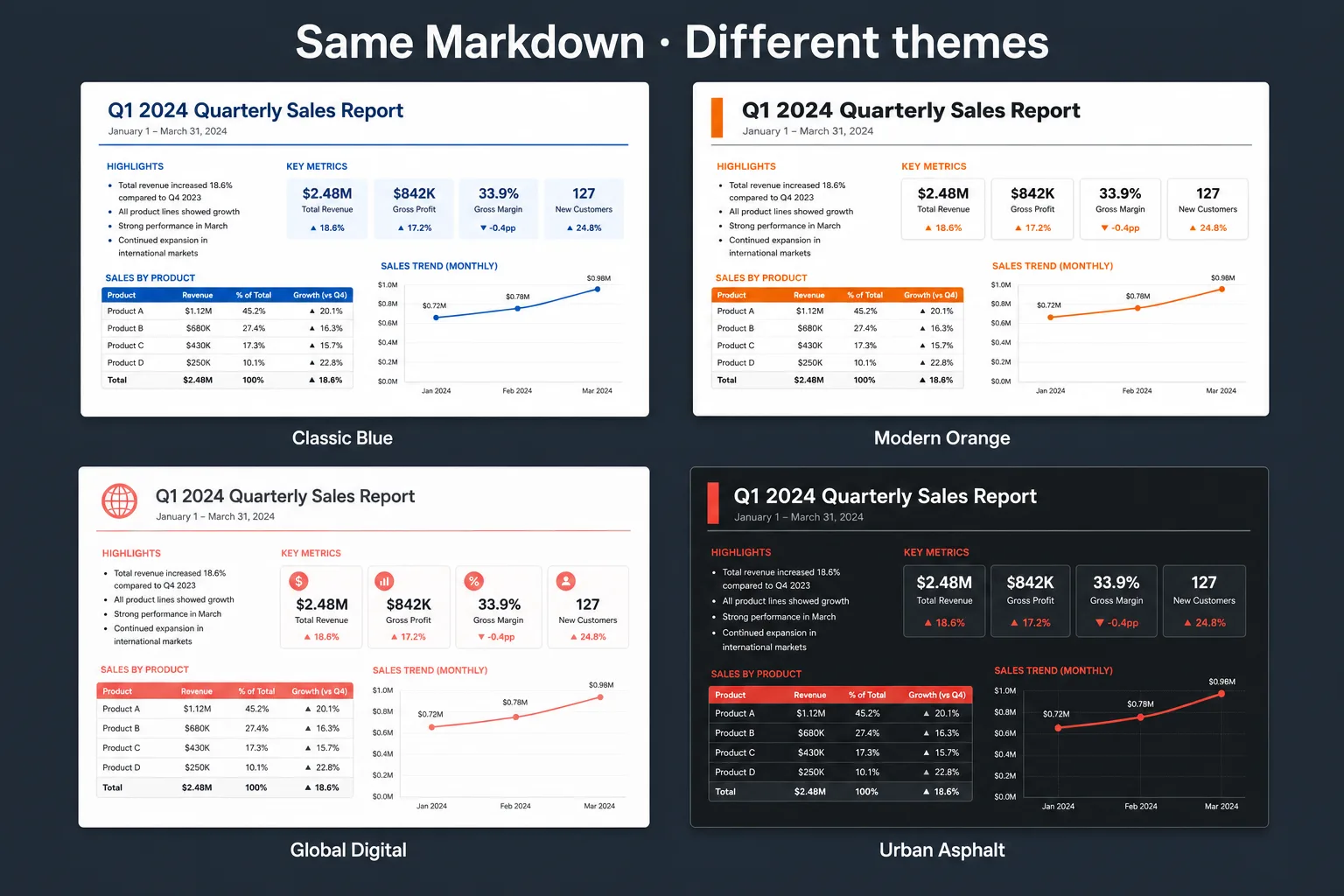
Classic Blue 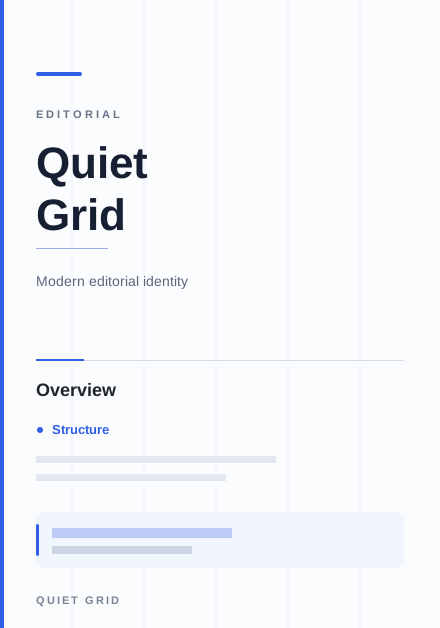
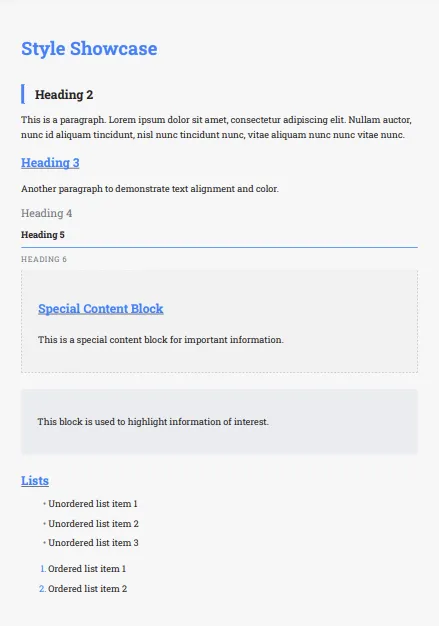
Quiet Grid 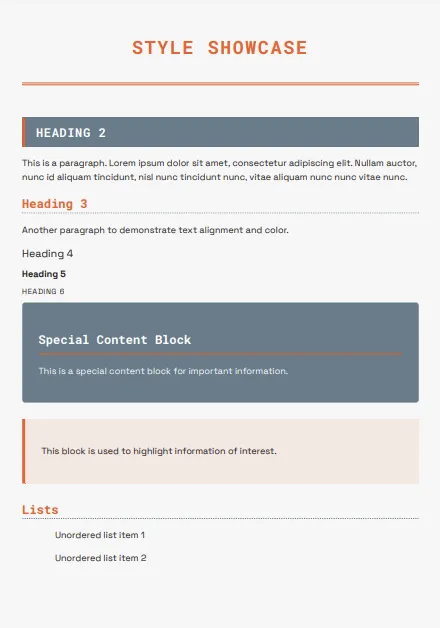
Modern Orange 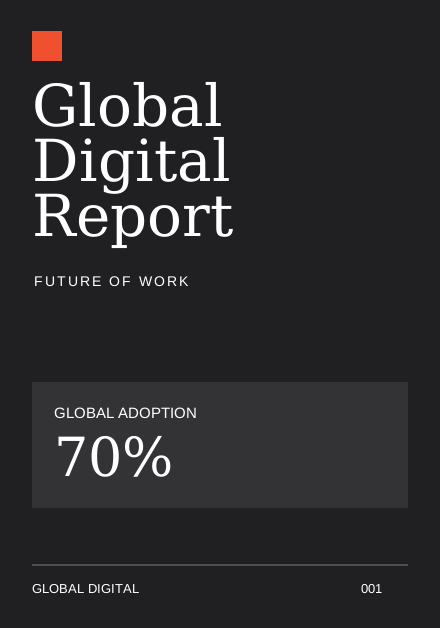
Global Digital
Why themes matter
Publication themes define how documents appear. They control:
- Typography
- Cover pages
- Margins
- Tables
- Images
- Callouts
- Page numbers
- Headers and footers
- Table of contents
Because presentation is centralized, every document feels professionally designed without manual formatting.
Live example
Here’s a consulting proposal scaffold you can open directly. Fill the sections, switch themes, and export PDF or Word when you’re ready.
---
title: Consulting Proposal
theme: "14"
pageSize: letter
orientation: portrait
coverPage: true
tableOfContents: true
pageNumbers: true
---

# Consulting Proposal

## Executive Summary

This proposal outlines a twelve-week engagement to modernize the client’s
document publishing workflow. The goal is a repeatable process for proposals,
status reports, and technical specifications that stay consistent across teams.

## Objectives

- Reduce time spent on manual formatting before every client delivery
- Keep one reusable structure for consulting proposals
- Present the same content under brand-appropriate publication themes

## Project Overview

The engagement starts with a short discovery phase, then builds a standard
proposal outline, sample content, and a publication theme set the team can reuse.

## Scope

| Workstream | Included | Notes |
| --- | --- | --- |
| Template design | Yes | Cover, summary, scope, timeline, pricing |
| Theme setup | Yes | Client-facing and internal review variants |
| Team training | Yes | Two working sessions |
| Custom integrations | No | Available as a follow-on engagement |

## Timeline

1. Week 1–2: Discovery and current-state review
2. Week 3–6: Template and theme implementation
3. Week 7–10: Pilot proposals with two live opportunities
4. Week 11–12: Handoff, training, and refinement

## Budget

Fixed-fee engagement with optional support hours after launch. Pricing depends on
the number of document types included in the first release.

## Risks

- Stakeholders may want unique formatting per client before the template settles
- Existing Word files may need a one-time cleanup pass before reuse
- Diagram-heavy proposals need a short Mermaid or image convention

## Delivery Flow

```mermaid
flowchart LR
  A[Proposal template] --> B[Draft content]
  B --> C[Publication theme]
  C --> D[Client-ready PDF]
```

## Conclusion

A shared template keeps every proposal complete. A publication theme keeps every
delivery looking intentional—without rebuilding the document for each client.
Direct editor entry point: /?example=professional-document-template
The consulting proposal scaffold becomes a paginated client deliverable with a cover, table of contents, scoped tables, Mermaid delivery flow, and consistent headings under a publication theme such as Classic Blue—or a simpler technical theme for internal review.
Features for professional publishing
Polished.page supports professional document workflows with tools that keep structure and presentation independent:
- Publication themes
- YAML front matter
- Cover pages
- Automatic table of contents
- Running headers and footers
- Tables
- Images
- Mermaid diagrams
- Callouts
- Live paginated preview
- Professional PDF export
Templates help you start. Publication themes help you finish. Explore reusable outlines on the templates hub.
Frequently asked questions
What is a professional document template?
A professional document template provides a reusable structure for common document types, helping you organize information consistently and reduce repetitive work.
What’s the difference between a template and a theme?
A template defines what goes into a document and in what order. A publication theme defines how that document looks, including typography, spacing, page layout, and visual style.
Can I use AI with document templates?
Yes. AI can generate content for each section of a template, making it much faster to create complete reports, proposals, and documentation without starting from an empty page.
Can I change the appearance without changing the content?
Yes. When presentation is separated from structure, you can apply different publication themes while keeping the same document content.
Why not just use a Word template?
Word templates are useful for getting started, but they often combine structure and formatting. Separating those concerns makes documents easier to maintain, restyle, and publish consistently.
Are templates useful for technical documentation?
Absolutely. Templates ensure documentation follows a predictable structure, while publication themes maintain a consistent visual identity across manuals, guides, and specifications.
Final thoughts
A good template helps you avoid starting from scratch. A good publication theme ensures the finished document looks polished.
When structure and presentation work together—but remain independent—you gain a workflow that’s easier to maintain, faster to update, and more consistent across every document you publish.
Write once. Organize with templates. Present with themes. Publish with confidence.
Keep exploring
- Open the Polished.page editor
- Apply a theme to an entire document
- How to format a report
- AI document formatting
- Make a Word document look professional
- How to make a PDF look professional
- Markdown to PDF
- Markdown to Word
- Write professional documents with ChatGPT
- Document templates
- Browse publication themes
- More guides