How to Make a Word Document Look Professional
The content is good.
The document still doesn’t look professional.
When headings, tables, and page breaks fight you in Word, stop repairing the formatting by hand. Keep the structure, apply a publication theme, and export a document that looks intentional.
You’ve finished writing. The document still looks unfinished.
The report, proposal, or documentation is done. The content is good—but the document still doesn’t look professional. Headings feel inconsistent. Tables don’t match. Page breaks land in awkward places. Images refuse to align. The whole layout still feels like a draft.
That frustration is common with long documents. The problem usually isn’t the writing. It’s the formatting.
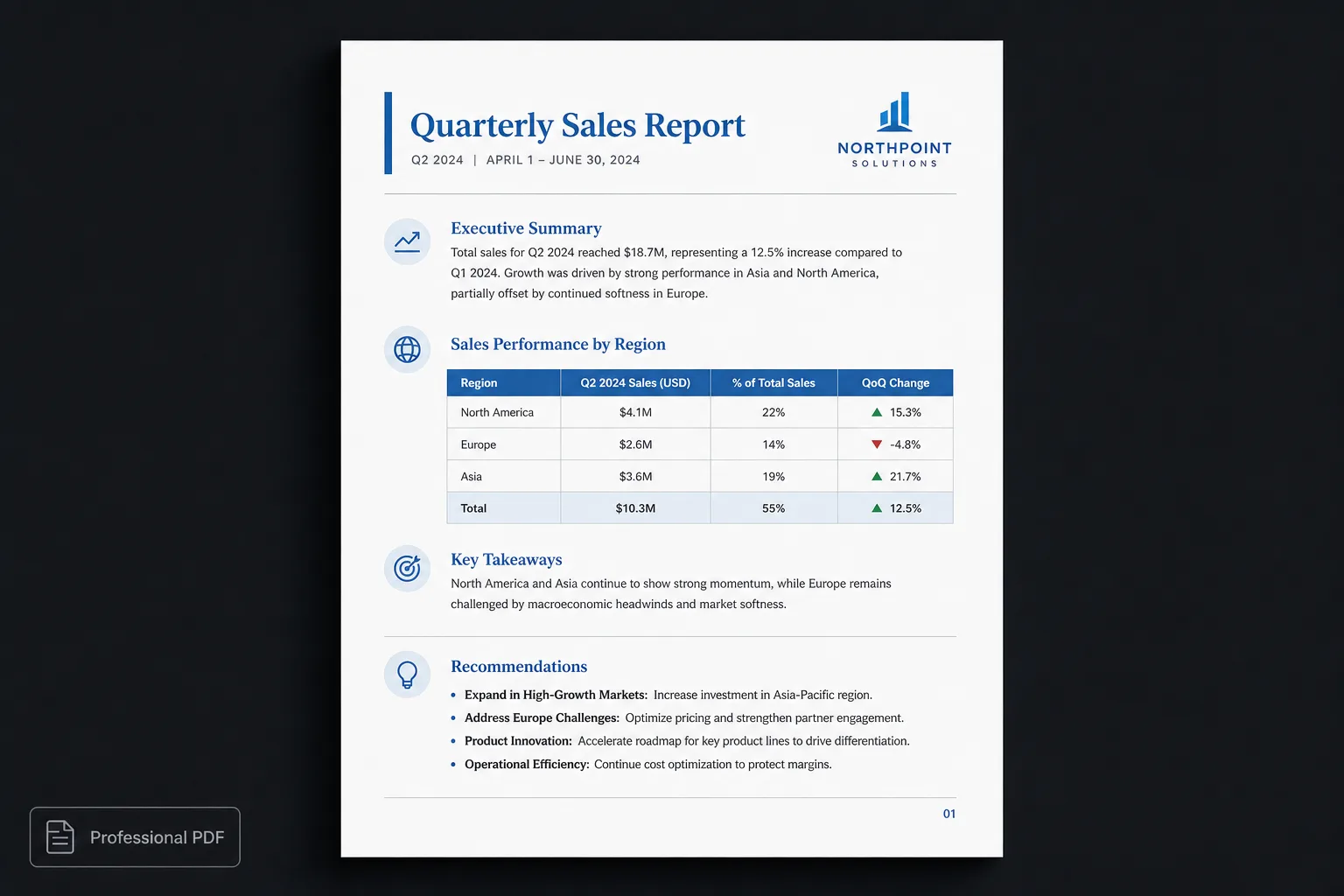
Why documents start looking messy
Microsoft Word is an excellent word processor, but it’s designed around editing visual formatting directly. As a document grows—especially when several people edit it, or content arrives from email, websites, and AI assistants—formatting drifts:
- Inconsistent heading sizes
- Mixed fonts
- Uneven spacing
- Tables that don’t match the rest of the document
- Images that shift unexpectedly
- Broken page breaks
- Different list styles
- Inconsistent margins
- Headers and footers that need constant manual fixes
Eventually, formatting becomes a project of its own.
A professional document is more than nice fonts
Professional documents are consistent. Every page feels intentional. Headings follow a clear hierarchy. Tables look like they belong. Images are aligned. Whitespace is balanced. Readers never notice the formatting because nothing fights for attention.
Achieving that consistency manually is surprisingly difficult.
The traditional workflow
Many people spend the last hour of every document doing work like this:
- Changing heading sizes
- Fixing page breaks
- Aligning images
- Restyling tables
- Updating fonts
- Adjusting margins
- Moving content between pages
- Re-exporting PDFs
Those final adjustments often take longer than writing the document itself.
| Word cleanup | Polished.page |
|---|---|
| Fix heading sizes by hand | Automatic hierarchy |
| Restyle every table | One table style |
| Nudge images into place | Consistent layout |
| Repair awkward page breaks | Intelligent pagination |
| Rebuild for a new brand look | Switch publication theme |
| Export after another cleanup pass | Export polished PDF or Word |
A different way to think about documents
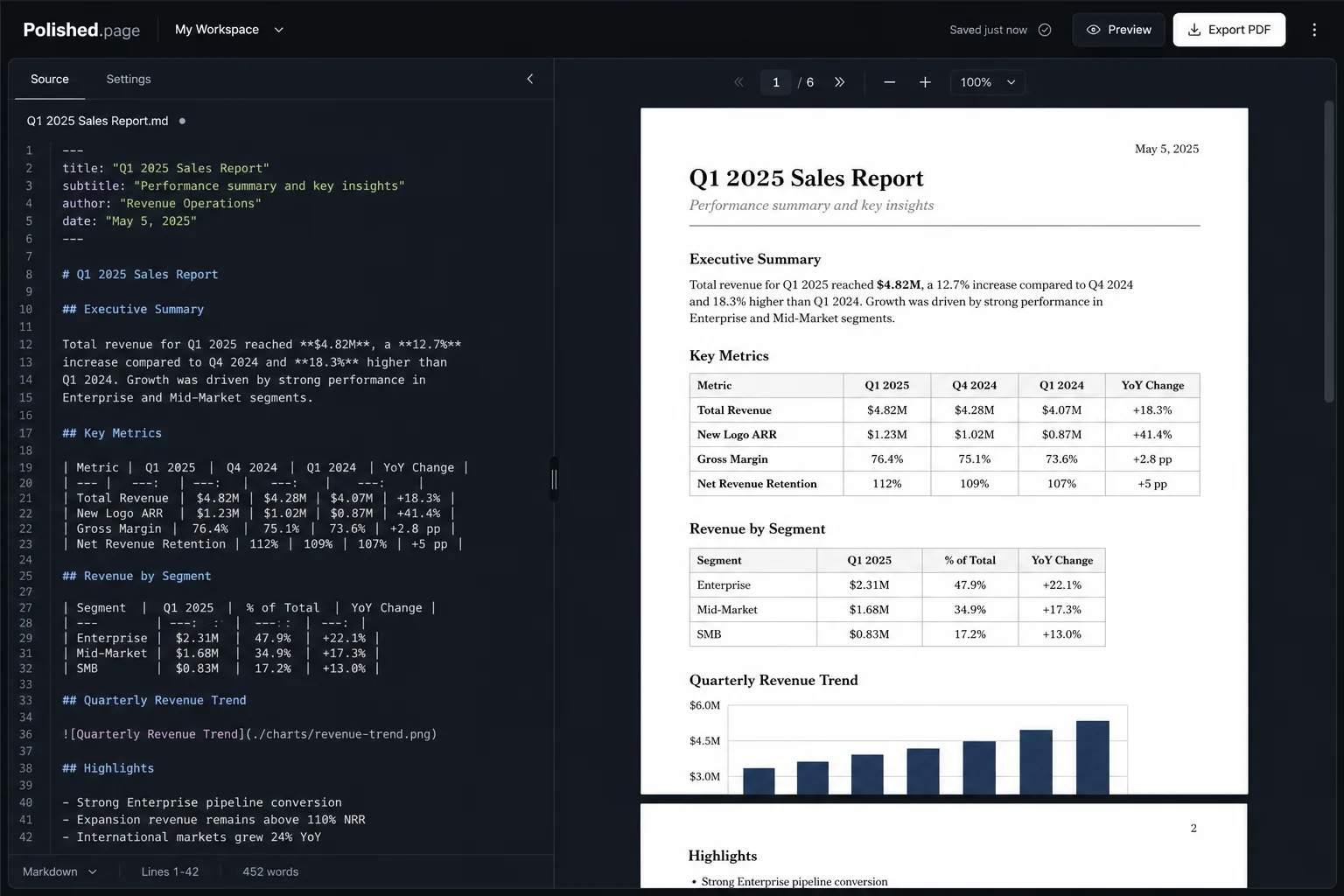
Instead of designing the document while you write it, separate content from presentation. Write using structured Markdown. Then let a publication theme control how the document looks.
Technical publishing has used that approach for years because documents stay easier to maintain and formatting work drops sharply.
With Polished.page, the loop is short:
- Write your content (or generate it with AI).
- Paste the Markdown into the editor.
- Choose a publication theme.
- Export a polished PDF—or an editable Word file.
The content never changes. Only the presentation does.
One document, multiple designs
Write a project report once. Without changing the text, you can present it as:
- A corporate report
- A technical specification
- An internal engineering manual
- A consulting proposal
- A product overview
Each version has its own typography, cover page, table styling, spacing, and overall identity. Instead of rebuilding the document, change the publication theme.
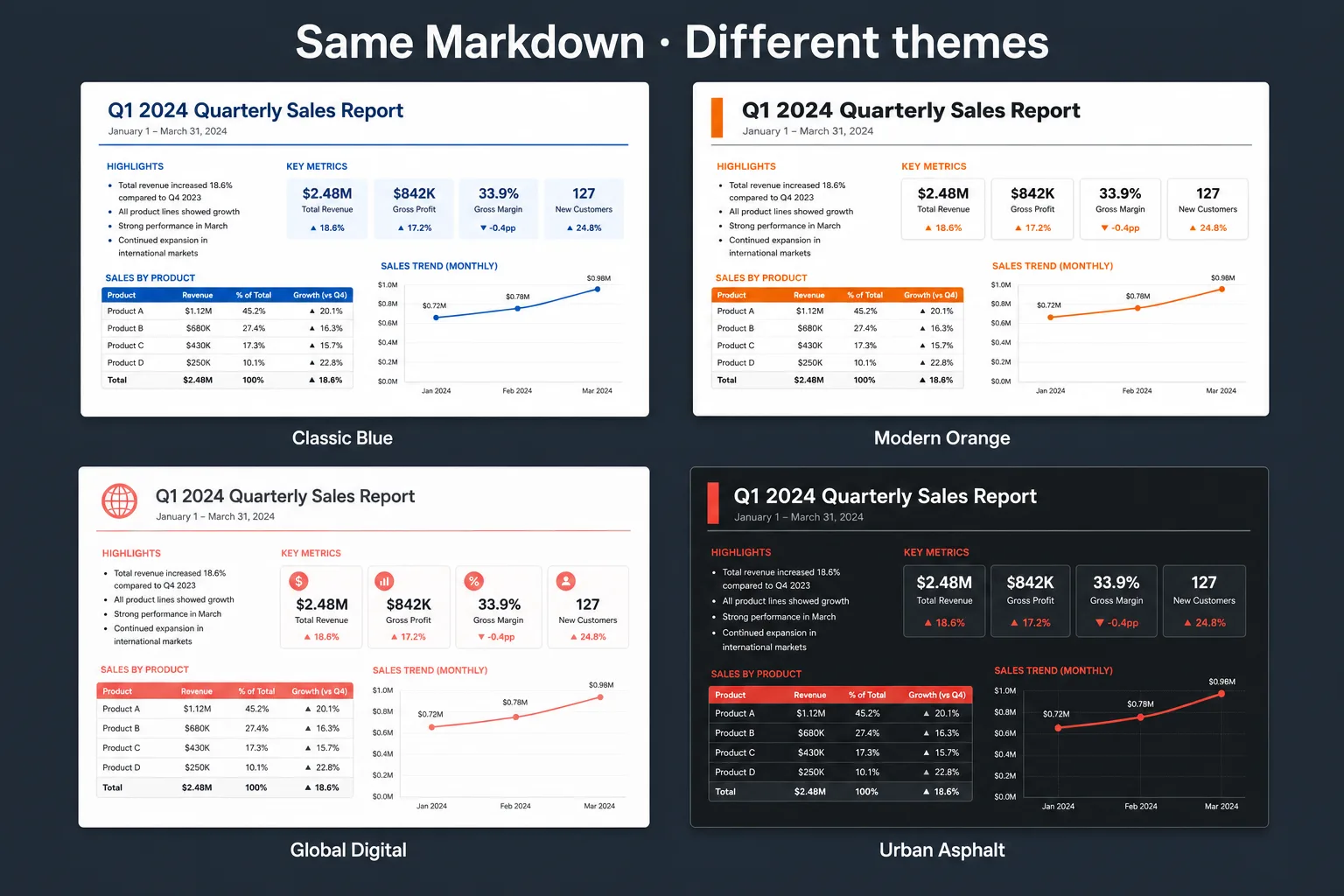
Classic Blue 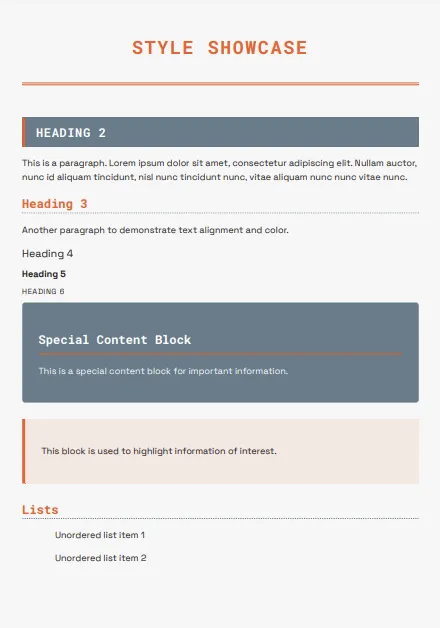
Modern Orange 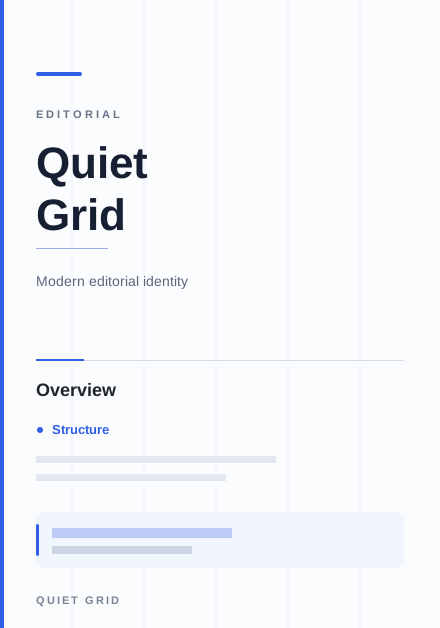
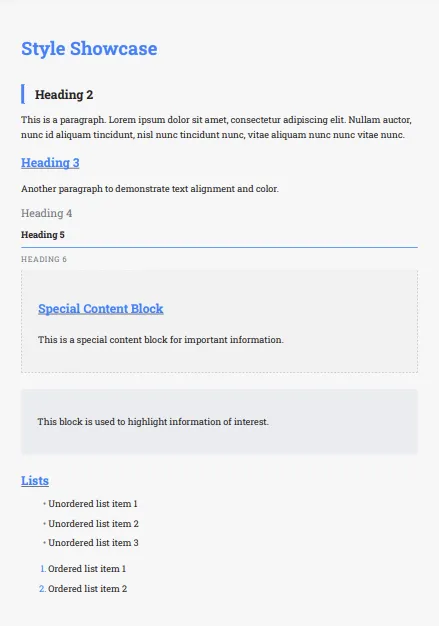
Quiet Grid 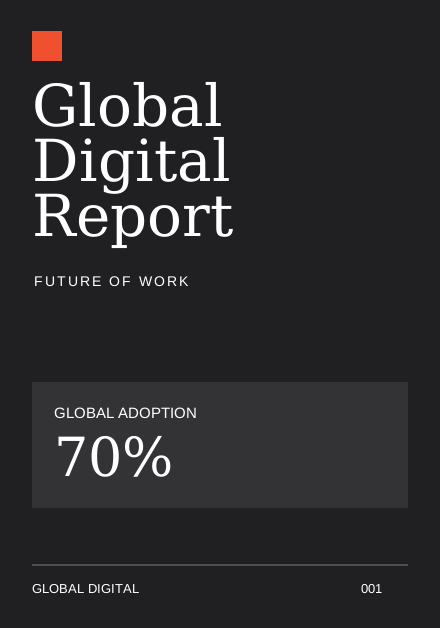
Global Digital
Common formatting problems (and better alternatives)
Problem: Every heading looks different
Word allows manual formatting almost everywhere, so heading styles drift as a document grows.
Better approach: Let the publication theme define heading hierarchy automatically.
Problem: Tables don’t look professional
Tables copied from different sources often use different borders, fonts, and spacing.
Better approach: Apply one consistent table style across the entire document.
Problem: Images never align properly
Long documents often need the same image adjustments again and again.
Better approach: Use a publishing layout that handles spacing and positioning consistently.
Problem: Every report needs a different visual identity
Changing colours and fonts throughout an existing document is tedious.
Better approach: Apply a different publication theme without touching the content.
Problem: AI-generated documents lose their formatting
Many AI assistants generate structured Markdown, but pasting into Word usually means more cleanup.
Better approach: Keep the Markdown structure and apply a publication theme built for professional documents.
Why Markdown makes this easier
Markdown describes what something is, not how it should look. Instead of choosing fonts manually, you write:
# Executive Summary
## Key Findings
## Recommendations
The publication theme decides how those headings appear. That keeps documents consistent regardless of length—and it fits AI drafts, because assistants already produce structured Markdown.
Live example
Here’s a client-delivery report you can open directly. Theme it, paginate it, and export PDF or Word when you’re ready.
---
title: Client Delivery Report
theme: 14
pageSize: letter
orientation: portrait
coverPage: true
tableOfContents: true
pageNumbers: true
---

# Client Delivery Report

## Executive Summary

The engagement closed on schedule. Scope stayed stable after the mid-project
checkpoint, and the remaining open items are limited to documentation handoff
and one deferred reporting request.

## What We Delivered

| Workstream | Status | Notes |
| --- | --- | --- |
| Discovery | Complete | Stakeholder map and success criteria signed off |
| Implementation | Complete | Core workflows live in production |
| Enablement | In progress | Training deck and runbook due Friday |
| Handoff | Planned | Final walkthrough scheduled for next week |

## Recommendations

1. Keep the weekly status cadence for two more sprints after go-live.
2. Promote the runbook into the internal wiki before the handoff call.
3. Treat the deferred reporting request as a follow-on statement of work.

## Delivery Timeline

```mermaid
flowchart LR
  A[Kickoff] --> B[Discovery]
  B --> C[Build]
  C --> D[Enablement]
  D --> E[Handoff]
```

## Next Steps

- Confirm attendees for the final walkthrough
- Collect feedback on the training materials
- Issue the close-out summary within five business days
Direct editor entry point: /?example=make-a-word-document-look-professional
The same client-delivery Markdown becomes a paginated report with a cover, table of contents, consistent headings, styled tables, a Mermaid timeline, and page numbers—under a corporate publication theme such as Classic Blue.
Features that help documents look professional
Polished.page focuses on publication-quality output so you can stay on the writing:
- Publication themes
- Cover pages
- Page numbering
- Table of contents
- Images
- Tables
- Mermaid diagrams
- Callouts
- Procedures
- YAML front matter
- PDF export
- Live paginated preview
Who benefits most?
This workflow works especially well for:
- Consultants preparing client reports
- Software teams writing documentation
- Product managers creating specifications
- Agencies delivering proposals
- Engineering teams maintaining manuals
- Startups documenting products
- Researchers publishing reports
- Anyone using ChatGPT or Claude to draft documents
If your work regularly ends as a PDF, separating content from presentation quickly becomes a real time saver.
Frequently asked questions
How do I make a Word document look more professional?
Consistency matters more than decoration. Use a clear heading hierarchy, balanced spacing, readable typography, consistent tables, and stable page layouts. An easier alternative is to write structured content and apply a publication theme that styles the entire document automatically.
Can I change the design of an entire Word document?
Word themes and styles mainly change fonts, colours, and basic formatting. Publication themes can reshape the overall presentation—including cover pages, spacing, tables, and layout—while keeping the underlying content unchanged.
Is Markdown only for developers?
No. Markdown is a lightweight way to describe document structure. Writers, consultants, researchers, and AI users work with it because it stays portable, readable, and easy to edit.
Does ChatGPT generate Markdown?
Yes. ChatGPT commonly produces structured Markdown, which is a strong starting point for reports, documentation, and technical writing that you later theme and export.
Why not just keep using Word?
Word remains excellent for many tasks. If you regularly create long structured documents—or generate them with AI—keeping content in Markdown and applying publication themes usually cuts formatting work and keeps results more consistent.
Can I still edit my document?
Yes. The source stays Markdown, so you can revise the text, switch publication themes, and export again without rebuilding the layout from scratch.
Final thoughts
Professional documents are rarely defined by elaborate design. They’re defined by consistency. Readers notice clear structure, balanced typography, and clean layouts far more than decorative formatting.
That’s why modern documentation workflows separate writing from presentation. Instead of spending your final hour fixing formatting, write once, apply a publication theme, and let the document present itself consistently from the first page to the last.
AI writes. You review. Polished.page presents.
Keep exploring
- Open the Polished.page editor
- How to format a report
- AI document formatting
- Markdown to Word
- Apply a theme to an entire document
- Convert ChatGPT Markdown to PDF
- How to make a PDF look professional
- Format a ChatGPT report professionally
- Professional document templates
- Browse publication themes
- Document templates
- More guides